
Imagine that you’re reaching out to various leads about your new product or service. After personalizing each email and hitting send, you get an error message: “Your message couldn’t be delivered to [email address] because the remote server is misconfigured.”
This is caused by various email server issues, such as an invalid domain or incorrectly set up MX records.
This guide will explain what causes this common email error and how to fix it on Gmail and Outlook to increase your email deliverability. Read this guide to learn more.
What is the ‘Remote Server is Misconfigured’ Error Message?
After your email message is bounced or unsuccessfully delivered from the recipient domain, you will see the following error:
“Message not delivered.
Your message could not be delivered to [your domain email] because the remote server is misconfigured. See the technical details below for more information.”
Then, it’s followed by an error code and message. For example:
“The response from the remote server was:
550 Please turn on SMTP Authentication in your mail client…”
This error occurs when you try to send a message or reply from your domain email account or vice versa. It’s caused by various factors, which include:
- Incorrect Mail Exchange (MX) record setup
- Domain Name System (DNS) misconfiguration
- Unauthenticated Sender Policy Framework (SPF) and DomainKeys Identified Mail (DKIM) records
- Invalid or expired domain
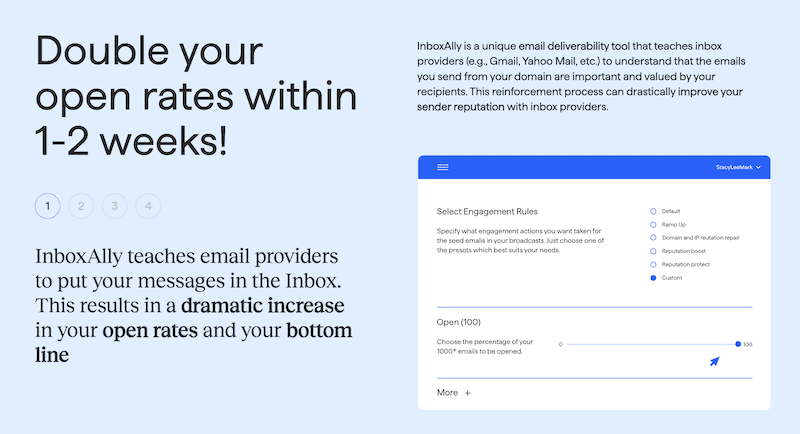
Note: Unverified DKIM and SPF records can potentially mark your emails as spam, negatively affecting your sender reputation. To avoid this and boost your email marketing efforts, consider InboxAlly. Our platform has several tools for reputation management, IP warm-up, and authentication, increasing your email deliverability. Start your journey to better inbox placement and higher open rates today with InboxAlly.
 inboxally.com
How to Fix the ‘Remote Server is Misconfigured’ Error in Gmail and Outlook
This common email issue on Gmail and Outlook can be fixed using the following fixes:
Fix #1: Update Your MX Records
One frequent fix to the ‘remote server is misconfigured’ error is updating your Mail Exchange (MX) records. Incorrect MX values will prevent you from sending or receiving emails properly on your domain email. To update your MX records in Google Workspace and Outlook, follow these steps:
In Gmail
- Access your domain host system to add a new MX record.
- On the Type list, choose MX.
- In the Host field, enter ‘@’. (If this value leads to an error, leave it blank.)
- In the Points to field, input: SMTP.GOOGLE.COM
- In the Priority to field, enter 1.
- Leave the default value in the TTL field.
- Select Save.
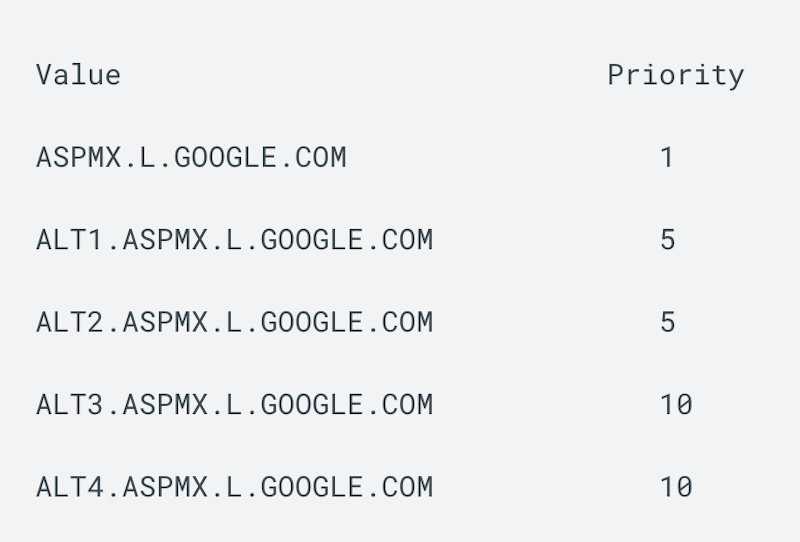
Note: If you started using Google Workspace before 2023, instead of entering SMTP.GOOGLE.COM, enter the following MX server address values:
 support.google.com
In Outlook
On your hosting provider’s website, add a new MX record. Ensure to set the following values:
- Record Type: MX
- Priority: Set to the highest value available, typically 0.
- Host Name: @
- Points to address: Copy the value from the admin center and paste it here. (ex. If your domain name is domain.com, the value is domain.com.mail.protection.outlook.com)
- TTL: 3600
Fix #2: Check Your SPF and DKIM Records
The error can also occur when you have unauthenticated SPF and DKIM records. You can use our free Email Spam Checker to verify if these values are correctly set and check your spam score. Then, you can check Google Workspace’s guides to ensure that your SPF and DKIM values are properly configured. For Outlook, you can check their SPF and DKIM help articles on configuring those values step-by-step.
Final Thoughts
The ‘remote server is misconfigured’ error is frequent on various email service providers. These are usually caused by outdated MX records, unverified SPF and DKIM records, or when your domain has expired. You can quickly solve it by updating your MX, SPF, and DKIM records or contacting your hosting provider.
If you want to increase your inbox placement and avoid issues like the ‘message couldn’t be delivered’ error, consider trying InboxAlly. Our platform delivers noticeable results in as little as 4 to 14 days, enriching your open rates and overall engagement. Get started with InboxAlly and take your email marketing to the next level quickly and efficiently.
Unlock the Power of Real-Time Analytics with InboxAlly! Track the progress of your email campaigns as they happen and see where your emails have landed in the past 30 days. Contact us now to start your journey to better inbox placement and higher open rates!