A large number of messages sitting in your inbox right now are watching you back through invisible tracking technology, making it essential to learn how to stop email tracking. These so-called “spy pixels” help notify marketers the exact moment you open a message from your location data to the device you are currently using.
This guide provides you with the exact steps you need to take to reclaim your digital space by blocking these trackers across all your devices. And by the end, you will have a secure inbox that prioritizes your online privacy over corporate data collection.
Quick Answer
If you want to stop email tracking, you will need to disable automatic image loading in your email client settings to block tracking pixels. For even more protection, you can use a dedicated browser extension to identify and block email tracking attempts automatically.
Why You Must Block Email Tracking Pixels in Marketing Emails

Email tracking parameters are mainly powered by invisible 1×1 pixel images. Once you open the mail, these remote images notify the sender that you are engaging with the message. This allows senders to measure engagement, particularly in cold email outreach. During this process, limited technical data, such as the time of the open and general device or client information, may be recorded.
Understanding this technical setup is important for those managing cold email tracking campaigns. Although trackers help calculate open rates, they can also end up in spam folders if they are too aggressive. Because of this, many cold email tools rely on these pixels.
However, being totally dependent on these can also damage email deliverability. If you are on a growth plan for your business, prioritizing your recipients’ email privacy often leads to better long-term deliverability.
The Privacy Risks of Unrestricted Email Trackers
When email trackers are left alone, they collect data that builds a profile of your daily habits. This data is often used to feed lead generation efforts or to trigger automatic follow-ups and phone calls. By allowing these pixels to load, you are providing a roadmap of your active hours to anyone with your primary address.
How Email Privacy Affects Your Digital Footprint
Keeping high email privacy standards stops your data from being added to massive databases. This is especially important when dealing with multiple email accounts or inboxes, where linked data can lead to intrusive outreach. Protecting your primary inbox keeps your interaction data private and out of reach of third-party deliverability tools.
Steps to Stop Email Tracking in Gmail App and Desktop
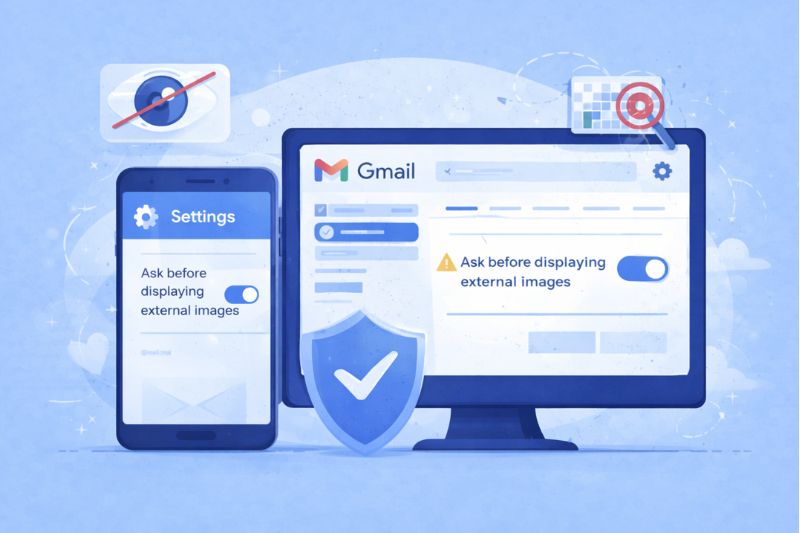
You can block tracking domains in Gmail by going to “Settings” and selecting “Ask before displaying external images.” This simple change is one of the most effective steps you can take to protect your inbox. By forcing the Gmail account to ask for permission before loading visuals, you stop tracking pixels from firing on their own.
For professionals using Google Workspace, these settings are often handled at the mailbox setup level. If you are managing Google Workspace inboxes for a team, turning off automatic image loading can reduce unnecessary tracking and improve overall email performance.
Disabling Automatic Image Loading on Desktop
On your computer, click the gear icon in Gmail and select “See all settings.” Scroll down to the “Images” section and check “Ask before displaying external images.” This change makes sure that no email tracking happens unless you choose to see the images.
Securing the Gmail App on iOS and Android
To secure the app, open the menu, go to Gmail’s “Settings,” and select your specific email address. Under the “Data usage” section, tap “Images” and select “Ask before displaying external images” and click save. This is a big step for mobile users, as it stops tracking from revealing your physical location.
Techniques to Protect Your Inbox on Apple Mail and Other Clients
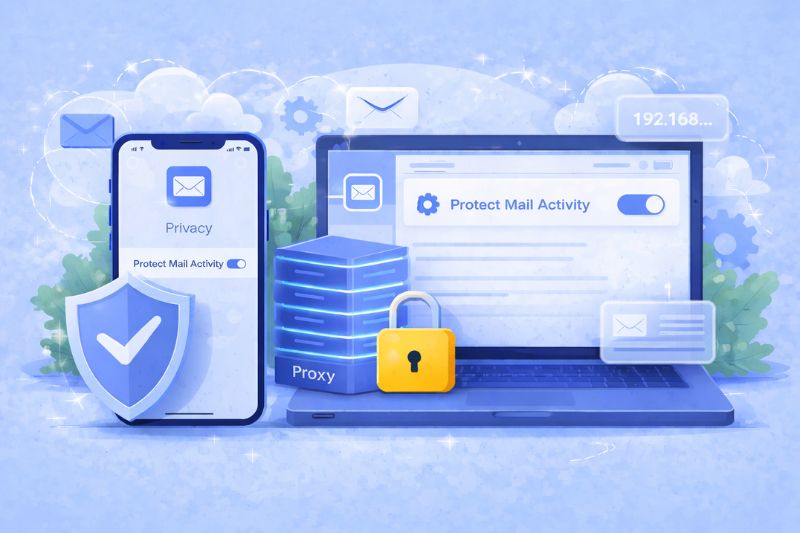
Apple users can block email tracking by enabling “Protect Mail Activity” in Apple Mail’s privacy settings. This feature is a major shift for email provider privacy because it sends all remote content through proxy servers. This conceals your IP address, sensitive information, and prevents senders from knowing if or when you opened their email outreach.
See how your own email infrastructure holds up against these privacy filters by using a Free Email Tester. Knowing your inbox placement is the first step toward a better email performance without using invasive tracking.
Using Mail Privacy Protection to Mask Your Real IP Address
You can turn this on in Settings > Mail > Privacy protection (on your iPhone or Mac). Once you toggle the “protect mail activity” button, you will create a scalable email infrastructure for your own privacy. It’s an easy way to make sure that even major email/internet service providers aren’t able to track your moves across the web based on your email clicks.
Standard Image Loading Settings for Outlook and Yahoo Mail
For Microsoft mailboxes, you will need to open Outlook and go to File > Options> Trust Center. Now, click the “Trust center settings ” button and make sure that the box for “Don’t download pictures automatically in standard HTML email messages” is checked to help your domain reputation when using multiple domains.
If you are a Yahoo Mail user, you will need to go to Settings. In the menu, select “More settings” and from the viewing email menu, find the “show images in messages” option and set it to “Ask before showing external images”. This setup helps when managing multiple clients within a unified inbox without leaking data.
Reasons to Use a Browser Extension to Block Email Tracking Automatically
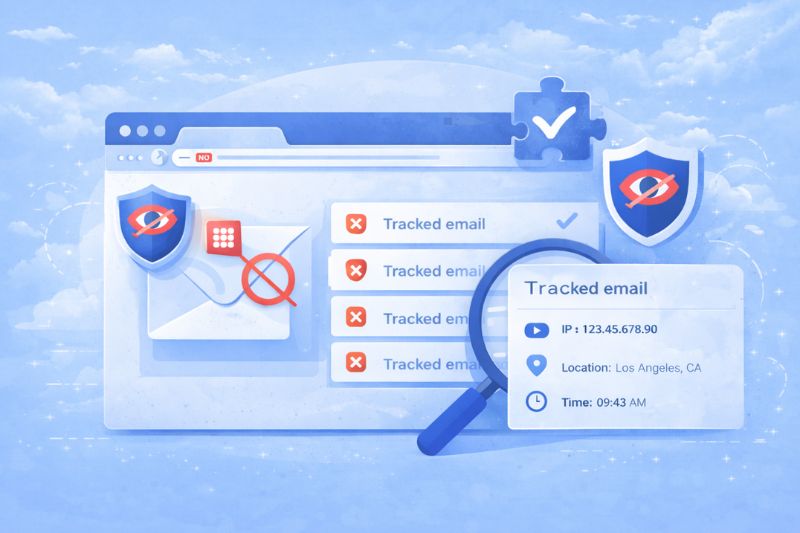
A specialized browser extension offers a “set-and-forget” way to find and stop tracking pixels before they ever load. While manual settings work well, an automated system gives an extra layer of defense against advanced email tracking tools. These tools often show an icon next to tracked emails, giving you advanced analytics on who is watching you.
For those running high-volume outreach, using a user-friendly interface, such as a privacy extension, can help you understand how tracking works and which tools are being used.
Top Recommended Extensions for Enhanced Email Privacy
Tools like PixelBlock or Ugly Email are great for those using a centralized dashboard to manage their mail. They work directly with your browser to block email tracking without you needing to change your mailbox setup. This is very helpful for users with unlimited email accounts who need one easy solution.
The Benefits of Combining Manual Settings with Automated Tools
Mixing manual image blocking with an extension creates a strong privacy setup. It makes sure your SPF, DKIM, and DMARC settings protect your outgoing mail, while your browser tools protect your incoming mail. This two-part plan is the top choice for email deliverability experts who need to keep a clean sender reputation.
Take Back Control of Your Digital Inbox
You don’t have to make protecting your privacy a full-time job. All you need is a few minutes to fix your email client settings and add an extension to fully block email tracking and hide your habits from email marketing campaigns. In short, a clean inbox starts with a solid technical setup that puts you first.
Ready to see how your own emails are doing without the fluff? Sign up for a 10-day Free trial and learn how to improve deliverability the right way.