
Twenty-five megabytes, that’s it! It’s one of the most repeated figures in email, and it happens to be correct, which is more than you can say for most email infrastructure data that gets repeated this often.
However, the advice built around it usually isn’t. Search this topic, and you’ll find yourself asking even more questions than you started with. Should you shrink files to 18 MB before sending? Does the receiving limit really double what you can send? What did Google’s February 2026 update change for your account?
Below is every figure that genuinely applies, straight from Google’s documentation, and which piece of common advice to ignore.
Key Takeaways
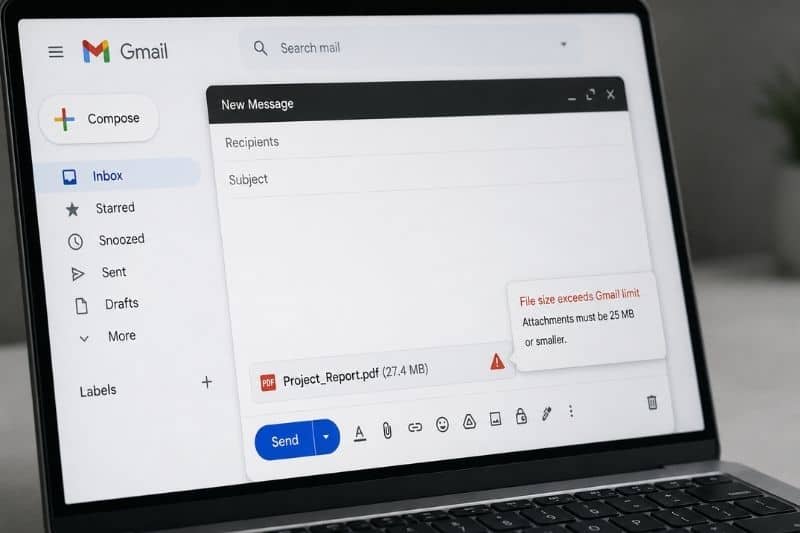
- The Gmail attachment size limit for sending is 25 MB on personal, Business, Education, and Enterprise Standard accounts, applied to the combined size of the message and everything attached to it. Enterprise Plus accounts can send up to 50 MB, though only through the web version of Gmail.
- Gmail’s receiving limit is separate and higher: 50 MB on most accounts and 70 MB on Enterprise Plus. Those receiving values are measured after encoding, which Google says adds roughly 37%, so the largest file that fits is actually closer to 36 MB than 50.
Sending and receiving email attachment size limits
Google publishes these in two different admin help pages, which is partly why they get muddled so consistently.
Sending, by edition:
- Personal Gmail, Business, Education, Enterprise Standard: 25 MB
- Enterprise Plus: up to 50 MB, web interface only
Receiving, by edition:
- Enterprise Standard and most accounts: 50 MB
- Enterprise Plus: 70 MB
The 25 MB limit applies to the whole message, not each file on its own. Sending a 14 MB PDF with a 12 MB video will fail, even though neither file exceeds 25 MB on its own. Inline images count too, since an image embedded in the body is still an attachment in the message structure.
The asymmetry between sending and receiving can be confusing. Someone on a different platform can send you a 40 MB message, and Gmail will take it happily. You, on the other hand, can’t return the favor.
Where the 18 MB rule of thumb comes from
Email attachments travel as text. Binary files get converted into printable characters through Base64 encoding, which is why a message on the wire is always larger than the file you uploaded into it.
Google puts the inflation at about 37%. So far, so good, we know the estimate. But how should you handle attachments knowing that? The standard advice is that the cap is 25 MB, encoding adds a third, so keep your files under 18 MB or the send will fail.
Google’s sending limits page says something different. The figures are described as limits on the total size of the message content and file attachments before encoding. A 24 MB file is measured at 24 MB, and as such it goes through.
Now let’s take a look at the receiving side, where the wording changes completely. There, Google states that the values are the limit after encoding, and notes the roughly 37% increase in the same sentence.
Two pages, two measurement points, and the difference reverses the practical advice on each side. On sending, the raw file size is what counts, and there’s no hidden haircut. On receiving, the cited 50 MB is a post-encoding number, so the actual file arriving in your inbox is limited to around 36 MB.
Which means the actual ratio between what you can send and what you can receive is closer to three to two than two to one. Not the kind of thing that ruins your day, but it does explain why “just keep it under 18 MB” is advice based on reading one page without much thought put into it.
What happens when the recipient’s limit is lower
Every number we’ve mentioned so far explains what Gmail will let out of the building. The recipient’s server has its own conditions, and it’s usually the smaller of the two (Gmail’s outbound limit or theirs) that decides.
Microsoft is the instructive comparison here, since a large share of business mail lands there. Exchange Online defaults to 35 MB for sending and 36 MB for receiving, and administrators can set anything between 1 MB and 150 MB. So a 24 MB attachment that Gmail happily accepts can still bounce off a tenant configured down to 10 MB, and you’ll learn about it from a delivery failure rather than a warning while composing.
Microsoft also handles the encoding question in a way Google doesn’t. Messages routed outside Microsoft’s data centers take a 33% translation encoding increase, and Outlook on the web restricts sends to 25% below the configured setting to leave room for it.
Two large providers, two approaches. One builds the adjustment into the client, the other measures the raw file and leaves it at that.
Google’s February 2026 attachment update
On February 24, 2026, Google announced that Enterprise Plus customers could attach files up to 50 MB directly, doubling the previous 25 MB, with the incoming message size limit rising to 70 MB. The stated reasoning was interoperability: partners who can’t work with Drive links, plus regulatory workflows where a direct attachment is the expected format. Rollout began on February 23, and the feature is admin-configurable.
Two things the announcement doesn’t mention.
First, this applies to Enterprise Plus only. Personal Gmail, Business, Education, and Enterprise Standard all stay at 25 MB, which covers the vast majority of accounts, including plenty of paying ones.
Second, (and this is apparent only in the limits table rather than the announcement itself) the 50 MB sending allowance is available only on the web version of Gmail. The mobile app on an Enterprise Plus account still limits attachments to 25 MB, with no on-screen explanation when a larger file fails to attach.
Attachment count, file type, and renamed extensions
Size is the famous constraint, but it isn’t the only one. The others fail more confusingly, since their error messages are vaguer.
Attachment count. A single incoming email can have a maximum of 500 attachments. Rare, but automated systems that bundle individual receipts or scans reach that limit surprisingly often.
File type. Gmail refuses executable file types outright, and the block extends to those files inside compressed formats like .gz and .bz2 or within archives like .zip and .tgz. Zipping an .exe to sneak it past has not worked for a long time.
Renamed extensions. Gmail detects the underlying file type regardless of what the extension claims, so relabeling something as .txt achieves nothing beyond confusing your recipient.
None of these produce a helpful message. You get a security warning and a send that doesn’t happen.
When the file genuinely doesn’t fit
The intended answer is Drive, and Gmail nudges you there automatically once you cross the limit: it uploads the file and puts a Google Drive link in the message instead of the file itself. Whether that link works depends on the recipient. Someone at an organization with strict external sharing settings may click it and get a permissions request instead of the file, and that’s the exact problem Google pointed to when it raised the Enterprise Plus limit.
Compression helps sometimes and not others. Documents and spreadsheets shrink well. Video, audio, and photos are already compressed, so zipping them buys you a percentage point or two and costs your recipient an extra step.
For images specifically, the fix is usually just lowering the resolution. A photo straight off a modern phone has far more detail than anyone needs in an email.
The problem with attachments in marketing email
Attachments in bulk mail are a bad idea regardless of the sending limit. They get scanned, they slow delivery, and they look like the kind of mail filters are built to be suspicious of. The standard approach for marketing and transactional mail is a link to a hosted file every time, which is why almost no reputable sender attaches anything to a campaign.
That still leaves a campaign that satisfies every number in this article and comes with no guarantee.
Email file size limits are predictable. You can measure them, plan around them, and know the answer before you send an email. Inbox placement offers none of that. There’s no number to check, no threshold to stay under, and no message telling you the campaign went the wrong way.
InboxAlly deals with the side of delivery that has no formula. It supplies the recipient behavior that inbox placement decisions rely on: scrolled opens, replies, clicks, and Spam and Promotions rescues. Start a free trial and get certainty about the half of delivery that never came with a number.