
Have you ever clicked “send” on an important campaign and watched your open rates go flat as your messages vanish into a digital black hole? For anyone emailing Outlook or Hotmail users, this is normally the result of invisible filtering decisions.
The good news is that SNDS provides a glimpse into this world and the transparency it so desperately needs. When you have mastered Microsoft SNDS, you will have a data-driven roadmap to monitor, protect, and repair your IP health.
Quick Answer
- Microsoft SNDS tracks real-time volume and spam trap hits to provide senders with critical transparency into Outlook and Hotmail filtering behaviors.
- Professional senders utilize this portal to diagnose delivery failures, allowing for precise infrastructure repairs that improve inbox placement.
The Critical Role of Microsoft SNDS in Email Deliverability
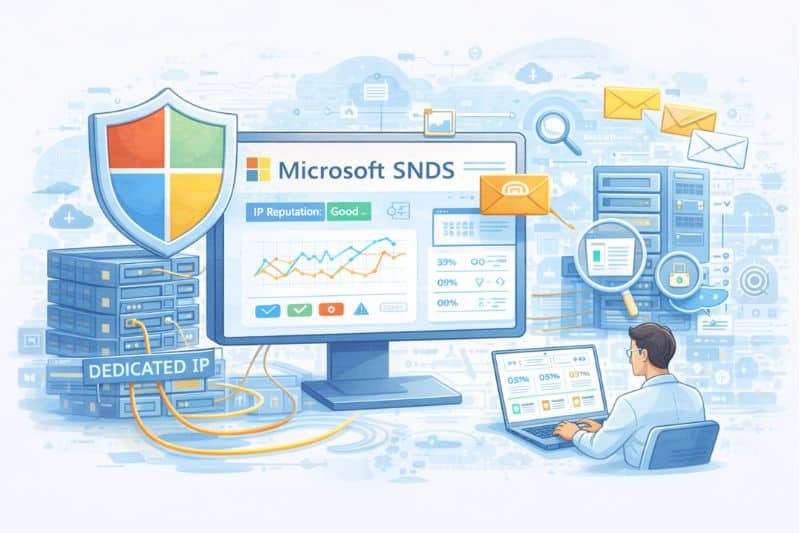
Microsoft SNDS provides the only definitive record of how your dedicated IP address is working within the Microsoft consumer network. Compared to third-party reputation tools that give an estimation of your standing, SNDS pulls data directly from the logs of Microsoft’s inbound mail servers. In short, the feedback you get is exactly what Microsoft’s filters are seeing in real-time.
Watching Network Data Services SNDS Signals
Handling millions of consumer mailboxes worldwide, the reach of data services is extensive. When you are using Microsoft SNDS, you aren’t just looking at a single Microsoft domain, but rather the aggregated signals from the entire Microsoft consumer network (i.e., @outlook.com, @hotmail.com, @live.com, and @msn.com).
Furthermore, since Microsoft uses a centralized filtering logic for these domains, monitoring your sender reputation is vital because a dip in reputation on any one of these generally signals a broader issue across their entire network. By keeping a close eye on these signals, you will be able to detect regional or segment-specific issues before they become a network-wide block.
Identifying “Invisible” Filter Result Issues
One of the most frustrating aspects of email marketing is when your ESP indicates that your email was “delivered,” but the recipient has not even seen it. This is usually due to Spam Confidence Level (SCL) block or silent junking. This occurs when the server accepts the email but redirects it to the spam folder.
Traditional ESP metrics are not able to look inside the proprietary filter results of the mailbox provider. However, Smart Network Data Services can reveal hidden spam trap hits that otherwise remain invisible to standard analytics. These services allow you to spot the hidden pitfalls by revealing a discrepancy between accepted “Info” and filtered data.
Additionally, using SNDS will let you spot these reputation dips early, so you can shift gears quickly before a bad reputation results in a complete, hard-block blacklisting of your IP.
Interpreting Microsoft SNDS Data and Metrics
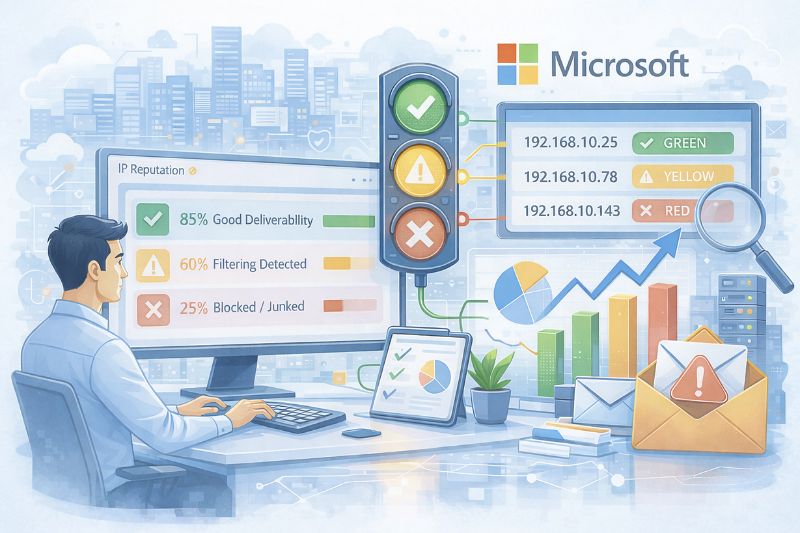
Interpreting your Microsoft SNDS data starts with understanding its simple, color-coded traffic-light system, which signals your IP’s reputation level to Microsoft’s filters.
The Color-Coded IP Reputation System
The most famous feature of the SNDS dashboard is its “traffic light” system. However, senders must be precise in how they interpret these colors:
- Green
This indicates a high reputation, which highlights your IP range as a reputable sender. In general, a Green status does not necessarily mean that your email will land in the inbox, but it means that your IP is not the main cause of the filtering. Your content, domain reputation, and engagement with the recipient still have a huge impact
- Yellow
This is a warning zone, which means it suggests a questionable reputation where a large part of your mail is being filtered. This is usually a sign of throttling or “greylisting,” where Microsoft is testing your traffic to determine if it is reliable.
- Red
A Red status is a critical failure. This shows that the vast majority of your mail is being blocked or junked. At this stage, your IP has likely hit multiple spam traps or exceeded complaint thresholds. Thus, requiring immediate cessation of sending and a deep audit of your list hygiene.
Analyzing Spam Folder Traps and the IP Address Complaint Rate
You will need to manage your compliance rate with extreme care if you want to stay in Microsoft’s good graces. Although the industry typically cites a 0.3% compliant threshold. It is imperative to remember that this can differ based on the total volume and the age of your IP addresses. Red flags can also be raised when there is a sudden spike in complaints on a new IP, leading to faster tagging compared to an established sender.
Additionally, identifying frequent spam trap hits is perhaps the most damning metric in your report. These hits occur when you send to “dead” addresses that Microsoft uses as honey pots; since these addresses never sign up for mail, hitting one is definitive proof of poor list acquisition practices or a failure to remove unengaged contacts.
If your SNDS status is showing Red, you can use Inboxally’s Free Email Tester to quickly assess your IP health and identify potential filtering risks.
Effective Usage Strategies — Setup and Optimization

Effectively using Microsoft SNDS requires a two-part approach: first, correctly configuring your Microsoft account. And second, proactively managing your sending practices based on the data.
Step-by-Step Microsoft SNDS Access and Configuration
To start with, you will first need to register a Microsoft account and verify ownership of your dedicated IP tangs though the official Microsoft SNDS portal. This procedure involves adding your specific IP addresses or CIDR blocks and confirming them through a verification email sent to approved addresses such as “postmaster” or “abuse”.
If you have a large team, allowing “Automated Data Access” through an API key is the ideal move. This practice allows you to pull reputation metrics into third-party monitoring tools for real-time alerts if your IP reputation level changes.
Using JMRP to Monitor Message Recipients
Installing is only half the battle; optimizing it demands active participation in the Junk Email Reporting Program (JMRP). Although SNDS spotlights the damage, JMPR provides the actual messages that recipients flagged as “Junk”. Thus, allowing you to pinpoint the specific campaigns that are causing the issues.
By integrating JMRP data back into your system to suppress complaining users, you can lower your complaint rate and guide your reputation status back toward the Green zone.
Stabilizing Your Data Commands and Sending Profile
Microsoft’s filtering algorithms favor consistency over volatility. Rapid swings in sending volume often mimic botnet behavior, leading to immediate reputation drops within the dashboard.
Maintaining a predictable frequency and smoothing out large sends across several hours helps the smart network data services system recognize your traffic as legitimate business communication. Furthermore, analyzing your data commands alongside recipient engagement ensures your infrastructure remains healthy. Pairing these stable patterns with aggressive list hygiene builds a sustainable environment for long-term deliverability success.
Catching Every Signal – Mastering Your Outlook Reputation
Microsoft SNDS is an important diagnostic tool that can navigate complex email deliverability. Although it doesn’t guarantee you inbox placement, it does provide the data needed to maintain your reputation.
Ready to move from monitoring to mastering your email success? Start your 10-day free trial of Inboxally today and ensure your messages always reach the primary inbox.