
You draft an email, attach the files, press send, and back it comes with a 550 5.7.0 message size violation error.
It’s one of those maddening email problems that feels small but unnecessarily eats up your time. How big is too big? Why did it bounce this time when similar emails worked last week? And how are you supposed to know whether the problem is on your end or theirs?
In this post, we’ll explain what’s actually going on when this server error shows up. We’ll cover why it happens, what you can do to fix it, and – most importantly – how to avoid wasting time on it again.
“Message Size Violation”: What It’s Telling You

Let’s clear something up immediately: the 550 5.7.0 message size violation error has nothing to do with spam, a wrong recipient’s email address, or your internet connection. It’s telling you one particular thing: your email was too big, and a server shut the door on it along the way.
The number part (550 5.7.0) comes from SMTP- the Simple Mail Transfer Protocol that moves emails from point A to point B. These servers speak to each other using status codes. The 550 is a permanent failure code, meaning the email server won’t try again. The 5.7.0 adds the specific reason: some policy or rule was broken. In this case, you exceeded the message size limit.
This issue stems from the assumption that, if you attach, say, a 20 MB file where the limit is 25 MB, you’re safe. But email attachments aren’t sent as-is. They’re encoded (usually in base64) during transmission, which inflates their size by about 33%. So that “safe” 20 MB file becomes closer to 26 or 27 MB, and now you’re over the line.
The error isn’t saying anything’s wrong with what you’re sending; it’s simply that the size in its transmitted form breaks the rules set by one of the servers involved. This is why it’s so frustrating.
You thought you were under the limit, but hidden overhead pushed you past it. And depending on the system, you might not even get a warning before the email bounces back.
Why Email Size Limits Still Exist (Even in 2025)
It’s 2025! We’ve got blazing internet speeds, terabytes of cloud storage, and apps that casually move massive files. So… why is email still limited by size?
Here’s the reality: email was never built to be a heavy-duty file mover. Its backbone (SMTP) comes from the 1980s, when internet connections were slow and fragile. Even today, mail servers have to be cautious because allowing unlimited-size messages opens the door to all kinds of problems:
- Server slowdowns
- Mailbox overflows
- Massive security breaches
From real-world experience, we can tell you: there’s always a line, even if it’s a generous one.
Let’s say Gmail allows up to 50 MB inbound, which is great. But if you’re emailing a client whose company mail server only allows 20 MB, your carefully prepared file will bounce.
Internal vs external matters, too. Inside your organisation, IT might configure generous limits (sometimes even 150 MB if you’re on Microsoft 365). Still, the second you step outside that controlled environment, you run into other people’s restrictions.
Bigger isn’t always better when it comes to email delivery.
Think about it like this: you wouldn’t try to mail a couch through your local post office- you’d hire a proper mover. Similarly, big digital loads work better through cloud links or dedicated file-sharing tools. Email’s strength is fast, lightweight communication, not hauling giant attachments across the internet.
So yes, the limits might feel old-fashioned, but they still serve a purpose: to ensure email stays reliable for everyone.
How Different Email Systems Respond to Big Emails

Each email client treats big messages following its own rules, and that’s where people often get thrown off.
For example, Gmail knows its own 25 MB attachment limit, so if you go over, it stops you upfront and offers to send a Google Drive link instead. Outlook.com works by the same idea, nudging you toward OneDrive. iCloud will push you toward Mail Drop. These platforms are designed to fail early, so they make sure you don’t waste time sending something doomed to bounce.
But business setups, like Microsoft 365 or on-prem Exchange, can have different rules. Inside your company, IT might let you send up to 150 MB between coworkers, but the second you send to an external contact, you’re at the mercy of their limits. You might watch your email leave your outbox perfectly… only for the recipient’s server to bounce it back with a 550 5.7.0 message size violation.
People often get confused when they see the bounce because they assume the problem was their email system. In reality, the recipient’s mail server is usually doing the rejecting. That’s why the bounce message often says something like “Remote server said: 550 5.7.0 message size violation”.
Big emails fail at different points depending on the systems involved. Some systems block you upfront, some during transmission, and others rely on cloud tools to bypass the issue entirely. Knowing where the failure happened helps you troubleshoot quicker and spares you from endlessly tweaking your setup when the problem isn’t even on your end.
So, before you send that next big email, check it with InboxAlly’s free email tester. Spot size risks, configuration errors, and reputation issues, all in one quick scan!
The Usual Suspects: Reasons Your Email Got Too Big
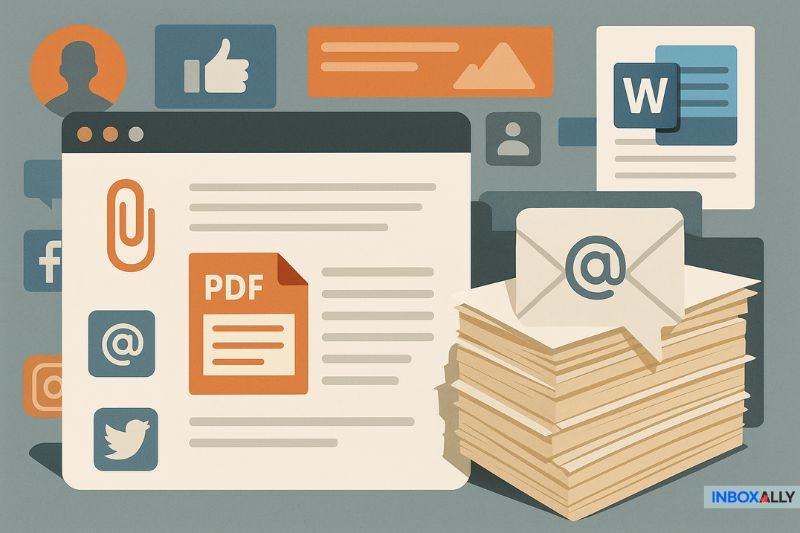
Not every oversized email results from a single, obvious file attachment. Sometimes, it’s death by a thousand cuts, and you don’t realise it until your message bounces with a size violation.
We’ve seen it countless times: someone attaches what they think is a modest file (maybe a 12 MB PDF) and hits send. But the email still gets rejected. Why? Because what looked like a simple message was bloated with hidden bulk, they never noticed.
Hidden Bloat from Embedded Images
Embedded images can be logos in email signatures, social media icons, and banners, often copied directly into the body of the email. In a lengthy reply chain, those little graphics get repeated, which means that a back-and-forth thread with five people and 40 replies can suddenly add megabytes of signature bloat.
Formatting Overload from Word or Web Copy
Another issue can be copy-pasting from MS Word or web pages. It might seem harmless, but with that seemingly simple text, you’re dragging in all sorts of hidden formatting, fonts, and styling code. What should be a 10 KB message turns into 500 KB or more without you knowing.
Outlook’s Winmail.dat and Hidden Attachments
If you’re sending emails in rich text format or using certain Outlook features, it can generate the mysterious and infamous winmail.dat file attachment that only other Outlook users understand. It not only adds size but can confuse non-Outlook recipients.
We’ve even seen people forward email chains as attachments, literally dragging an email into another email, unintentionally bundling the entire history of previous replies and attachments into one fat payload.
Troubleshooting It the Right Way (Without Losing Your Mind)

Troubleshooting a 550 5.7.0 message size violation doesn’t have to drive you crazy- if you approach it correctly.
First, actually read the bounce message. Don’t skim it and panic. Is it coming from your server or the recipient’s? Look for clues like “remote server said” or the recipient’s domain name.
If it’s your server blocking, you may need help from your IT admin to adjust your local limits or change the outgoing mail port. But if the email error comes from the recipient’s SMTP server, no amount of tweaking your email setup will magically push it through.
Next, decide if compressing the file is even worth your time. Sometimes, zipping a folder can shrink text-heavy documents or spreadsheets, but images and videos are usually already compressed. In those cases, splitting the files into multiple emails might save you more time.
But here’s the smartest move pros make: don’t waste time wrestling with email at all. Once you hit the size ceiling, switch to cloud links: Google Drive, Dropbox, OneDrive, WeTransfer. It’s faster, cleaner, and avoids this entire class of errors.
The key mindset is this: stop trying to brute-force it. Take a step back, figure out where the rejection happened, estimate whether a quick fix will work, and know when it’s time to switch delivery methods entirely. That’s how you troubleshoot like someone who’s been through this a dozen times before, without wasting an hour hammering away at the same error message.
Even when you fix size errors, poor deliverability can still hold you back. InboxAlly trains email providers to see you as trustworthy and boosts your inbox rates. Schedule a demo to see it in action.
Why It’s Not Just About Size: Reputation, Deliverability, and Trust

ISPs and mail servers track patterns. If an internet service provider sees your account or domain generating too many bounces, they start to question your reliability. Are you sloppy? Careless? Worse, are you a spammer? That suspicion makes them more likely to block or filter even your future emails, no matter how small or innocent.
And if you’re constantly sending big attachments, there’s a greater chance you’ll trigger spam filters and email security software. Many organisations scan or quarantine big emails because they’re a common way for malware or phishing attacks to slip through.
Now add another layer: SMTP authentication. Sender Policy Framework (SPF), DomainKeys Identified Mail (DKIM), and Domain-based Message Authentication, Reporting & Conformance (DMARC) are the technical checks that prove your messages really come from you. Without these, your deliverability is already on shaky ground. But when you combine poor authentication with oversized attachments and a history of bounces, you’re basically asking mail systems to distrust you.
Even if you manage to fix the immediate size problem by compressing a file or splitting the message, your sender reputation can carry scars from repeated failures. That’s why experienced senders focus on the bigger picture: good habits, a solid technical setup, and consistent trustworthiness.
In the end, email size is just one piece, and reputation is what keeps your messages landing where they’re supposed to.
How To Prevent Issues Entirely With Good Habits
Understandably, nobody wants to memorize every email system’s size limits. Gmail allows one thing, Outlook another, corporate servers something else entirely, so chasing numbers isn’t the answer. What is? Good sending habits:
- Compress wisely: Zipping files can help, but only for the right types. Images and videos are usually already compressed, so zipping them won’t save much space. Instead, resize photos or export PDFs at lower resolutions when appropriate.
- Use cloud storage: Google Drive, Dropbox, OneDrive, and WeTransfer. These are purpose-built to handle big files without clogging inboxes.
- Clean up your email threads: Long chains with old attachments and signature logos add hidden weight. Before hitting send, ask: Do I need to include all this history, or can I start a fresh thread?
- Avoid attachments in marketing or bulk emails: Big files + bulk sends = a surefire way to end up in spam. Always host downloads externally and share a link when reaching a broad audience.
In our experience, the senders who run into the fewest problems aren’t the ones who know all the tech specs, but those who build good habits and think ahead.
Final Thoughts
By now, you can see: the 550 5.7.0 message size violation isn’t some mysterious tech bug. It’s just another SMTP error code, and one you can work around once you understand the rules of email size.
Whether you’re a marketer, a business owner, or just someone trying to get important emails through, knowing how to manage size limits and sender reputation puts you way ahead.
If you want to go even further, InboxAlly can help make sure your emails land where they belong– not in the spam folder, not bounced back, but right in the inbox.
Keep sending smart, keep sending clean, and keep your deliverability flawless. Good luck!