
If you’re an active Gmail user, one of the most annoying things that can happen is a “queued” email not being sent. This problem delays email communication to your recipients, which might leave you wondering what is “queued” in Gmail and why it happens.
When an email is “queued” in Gmail, it means that it is still being sent by the app and stuck in your Outbox folder. Fortunately, this is a common issue and can be fixed using easy-to-follow steps. In this guide, we will explain the “Gmail queued” issue and go through eight fixes to help you solve queued emails in your Gmail account.
Read on to know more.
What are “Queued” Emails in Gmail?
To dig deeper, a “Queued” email in the Outbox of your Gmail app is an email that cannot be sent at the moment. So, the app will try to send that queued email later.
 Courtesy of X/SujeetKumar
However, some users have their emails queued for an extended time, which can be infuriating when you want to send an email immediately. This can happen for a few reasons, like a poor internet connection, exceeding email sending limits, service outages, etc.
Why is My Email “Queued” in Gmail?
Here are several factors why your emails are queued in the app:
- Network issues – A weak or dropped network connection can often lead to unsent or queued emails in your Gmail account. You might encounter the same problem if you send emails using mobile data, which is more unstable than Wi-Fi networks (recommended).
- Server problems – Your emails can stay queued in Gmail when Google’s servers are down. This problem can happen at any time and can also cause problems in your Gmail inbox. You can check if Gmail is operational through the Google Workspace Status Dashboard. Once there’s a service outage, consider waiting until the servers are up and running and see if your emails are sent.
- Gmail restrictions – You can face delivery issues with emails when they contain files that exceed the attachment size limit of 25 MB. At the same time, if you’re sending several emails using a free Google Workspace account with a daily limit, some emails may be queued for several hours at a time.
- Outdated Gmail app – Like any app on your mobile phone, the Gmail app needs to be up-to-date to avoid issues. Also, it’s best to install the latest software update for your phone to update apps seamlessly.
9 Simple Ways to Fix “Queued” Email in Gmail (For Multiple Devices)
#1. Check Your Internet Connection
The first thing you can do to fix a queued email in Gmail is to see if you have a stable internet connection. We recommend connecting your computer or Android device to a strong Wi-Fi network since mobile data connections are more prone to connectivity issues. If you’re using a VPN, try turning it off temporarily and check if it solves the problem.
 Courtesy of Pexels/Pixabay
#2. Check if Offline Mode is Enabled
To ensure that your emails are sent properly and don’t stay queued, you must ensure that Gmail is not in “Offline mode”. To do this, follow these steps:
- Open Gmail in your browser.
- Click Settings (gear icon) and select See all settings.
- Go to the Offline tab and ensure that Enable Offline mail is not checked.
- Click Save Changes.
#3. Check if Attachments is on the Threshold Limit
Gmail has an attachment size threshold of 25 MB on each email. This means you can attach as many files as you want, but their total size must not exceed 25 MB. Attachments exceeding that limit may cause email sending issues, such as a “Queued” email. Here are two ways to work around this issue:
- Send a compressed or zipped version – if you’re sending large files or media, you can compress them first and attach them to your email. Follow these steps to compress your file on Windows or Mac:
On Mac
- Choose or highlight all the files you want to compress.
- Select Control + Right-click and choose Compress.
On Windows
- Choose all the files you want to compress.
- Right-click and choose Send to > Compressed (zipped) folder.
- Upload attachments to Google Drive—Another way to insert large file attachments into your email is to upload them to your Google Drive first. Once done, select Insert files using Drive on Gmail’s compose email options. Then, select the files you want to attach, choose the Insert as Google Drive link at the bottom right, and click Insert.
#4. Schedule your Email Sends
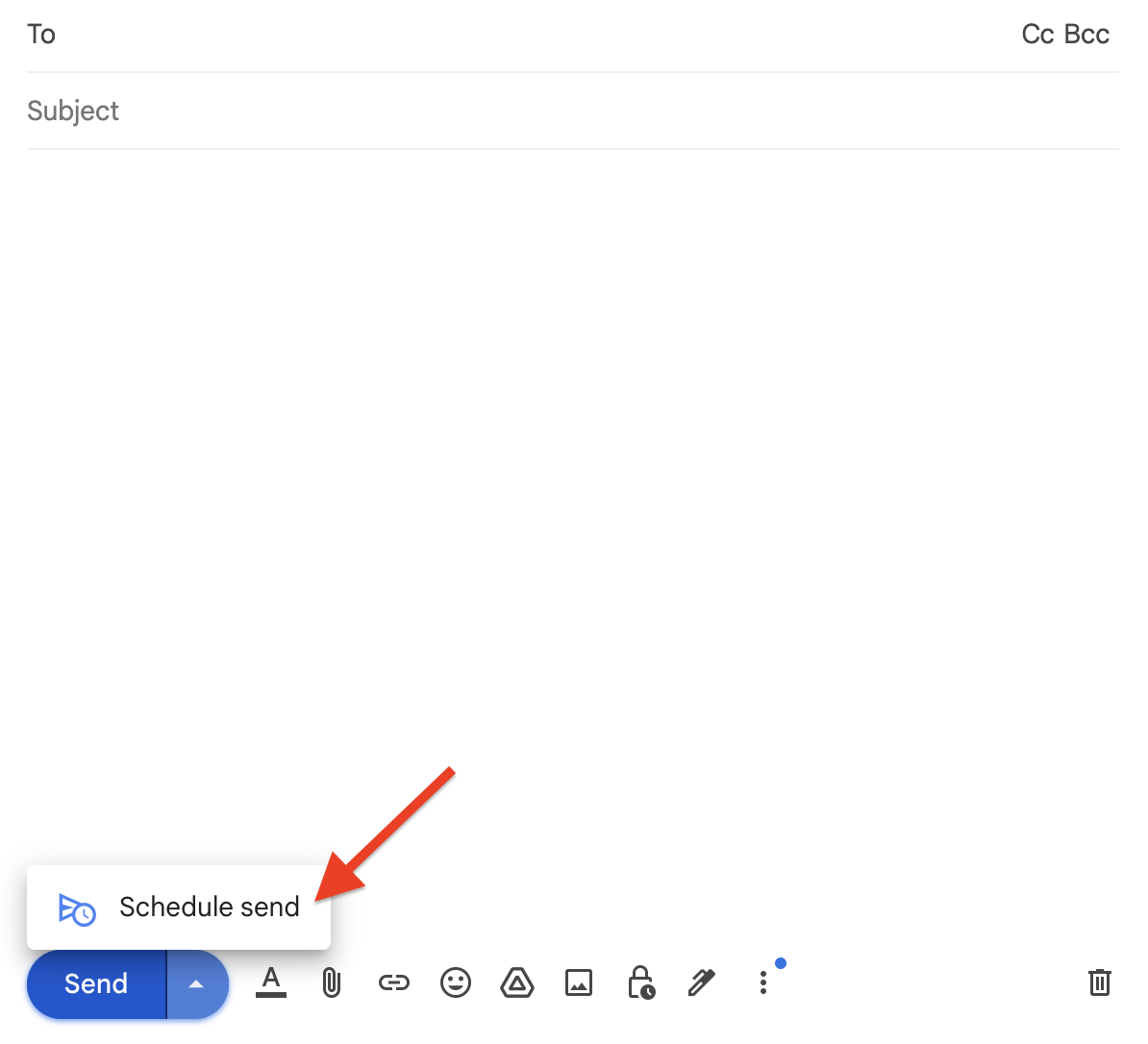
You can schedule emails on Gmail to properly manage your email sends without immediately maximizing your send limit (500/day on free accounts and 2,000/day for Workspace). To do this, select the blue up arrow next to the Send button on Gmail’s email composer and select Schedule Send. You can choose pre-made schedules or create a custom schedule.
 gmail.com
So you’ve finally figured out how to get your email to send, only to discover it’s landed in the recipient’s spam folder? With InboxAlly’s free email spam checker, you can get a detailed report on what’s triggering those pesky spam filters. Try our free email spam checker today.
#5. Clear Browsing Data
If you’re experiencing persistent problems with Gmail on your browser and have a stable connection, you can try clearing your browser’s cache and cookie data. To clear browsing data on Chrome, follow the steps below:
- Open Chrome and go to Menu (three vertical dots) > Clear Browsing Data.
- Check both “Cookies and other site data” and “Cached images and files” options.
- Select Clear data.
- Restart your browser and log in to Gmail. Check if your emails are sent.
#6. Adjust the Date and Time and Allow Background Data
Incorrect date and time settings on your mobile device can prevent your email account from syncing properly with Gmail’s servers, potentially causing queued emails. To set the date and time automatically on iOS and Android devices, follow the steps below:
On iOS
- Go to Settings > General and select Date & Time.
- Turn on Set Automatically.
On Android
- Go to Settings > System and choose Date and time.
- Toggle Automatic date and time to on.
Another way to fix a queued email in Gmail is to enable background data usage, which allows opened apps to run even when you’re not actively using them. Here’s how to enable it on your iOS and Android device:
On iOS
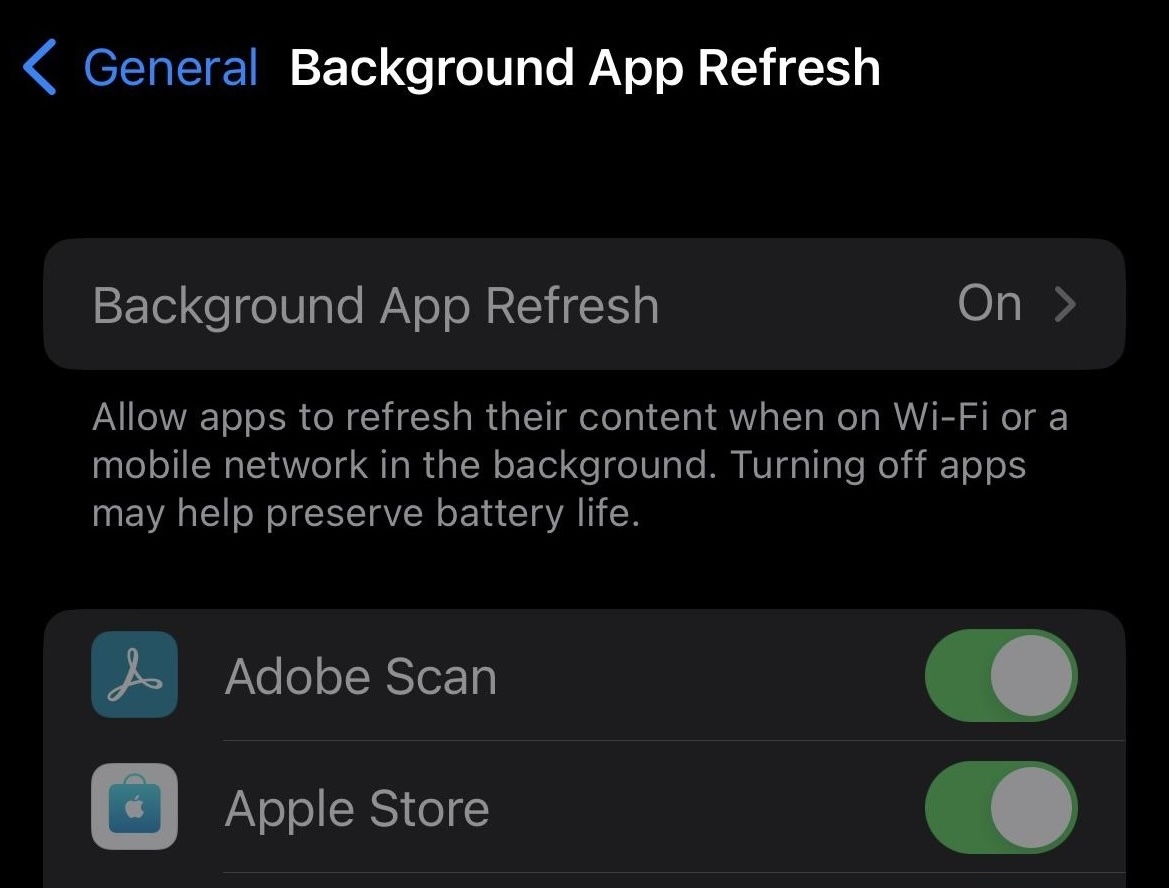
- Go to Settings > General and select Background App Refresh.
- Ensure that it’s enabled. Find Gmail on the list of apps and toggle it to On.
 Courtesy of Pinterest/CarltonJuma
On Android
- Go to Settings > Apps. Find Gmail and select it.
- Choose Mobile data and turn on both Allow background data usage and Allow data usage while Data Saver is on.
#7. Clear the Gmail App’s Cache
Another way to fix a “Queued” email on the Gmail app is by clearing its cache data via phone settings. This lets the app load faster and increases storage space. To do this on Android devices, follow the steps below:
- Go to Settings > Apps and choose Manage apps.
- Find Gmail and tap on it. Select Storage > Clear Data.
- Tap Clear cache and Clear All Data.
- Close Gmail and reopen the app.
- Log in to your email account and wait for your emails to be sent.
#8. Reset Network Settings
Incorrect network settings can cause connectivity issues on your iOS device and prevent Gmail from sending emails. Resetting these settings helps you have more stable internet connections. To do this, follow these steps:
- Open Settings and select General > Transfer or Reset iPhone.
- Tap Reset Network Settings and input your iPhone’s passcode.
- After the reset, you may be prompted to enter your Wi-Fi password again.
#9. Update Your Device’s Software and the Gmail app
Unexpected errors can occur if you’re using an outdated Gmail app. Also, installing the latest software update is necessary to access the latest app updates for your phone. Here’s how you can install software updates on iOS and Android:
On iOS
- Open System > General and choose Software Update.
- Your device will now check for the latest iOS updates.
- Tap Download and Install and follow the on-screen steps.
On Android
- Navigate to Settings > System and select System update.
- If an update is available, tap Download and install and follow the on-screen instructions.
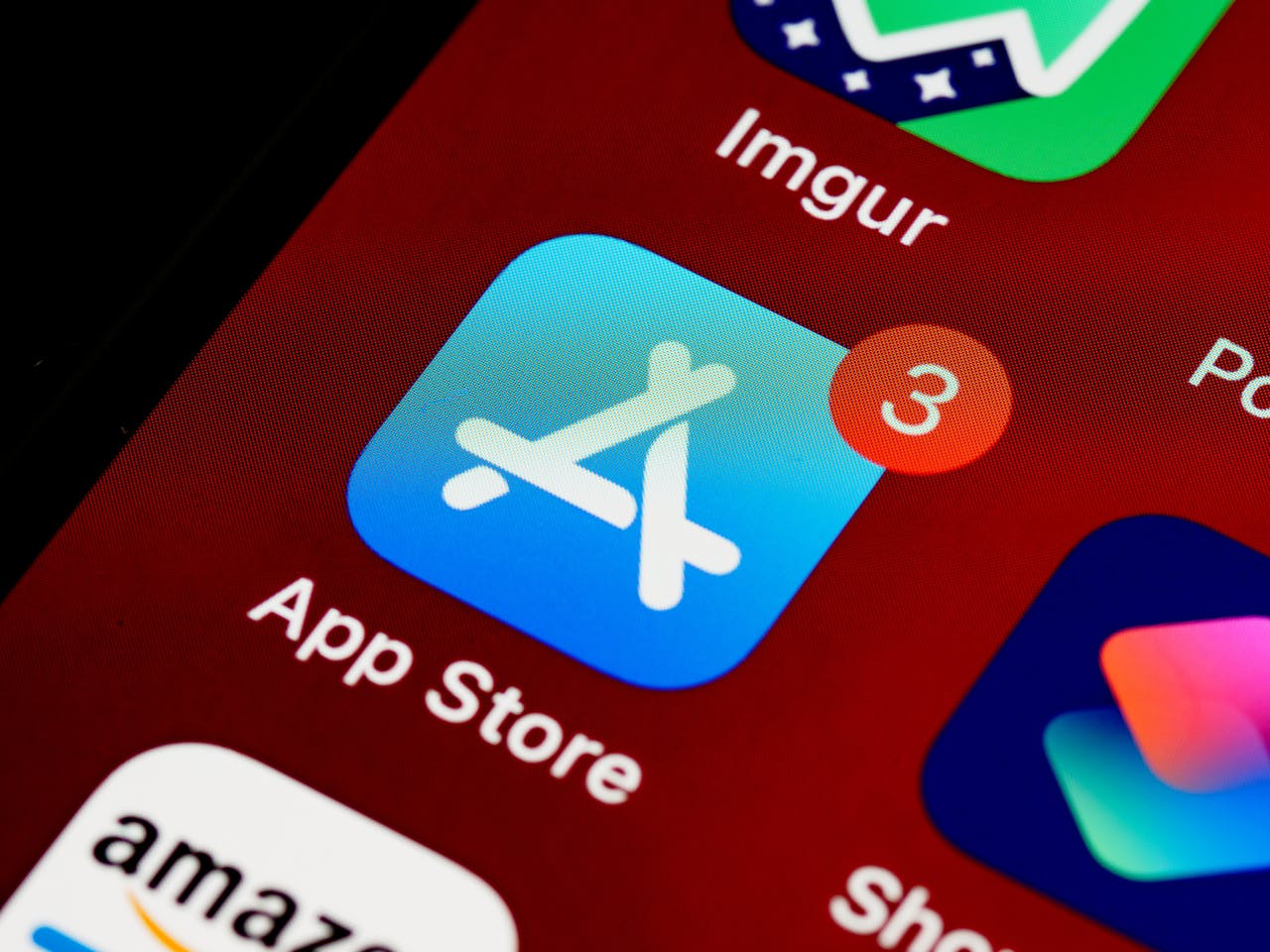
To update the Gmail app on Android or iOS, you need to go to the online app store on your phone (Google Play Store and App Store, respectively) and install the latest app update.
 Courtesy of Pexels/Brett Jordan
Final Thoughts
Sending emails on Gmail is quick and easy, but you’ll occasionally encounter problems like “Queued” emails. Some ways to fix the problem is to ensure you have a stable internet connection, updated software, the correct attachment size, and schedule your email sends.
To ensure your emails are delivered securely, consider using InboxAlly when sending mass emails. It’s an effective solution for email deliverability and scheduling and is compatible with any email-sending platform.
InboxAlly is an effective email deliverability tool for increasing open rates and engagement while on a budget. Check our pricing plans now and say hello to optimized email sending today!