
You’d think email authentication would be simple: set up an Amazon SES SPF record, publish a few records, and you’re done. But it turns out, teams run into all kinds of issues once they go beyond the basics.
That’s because SPF, DKIM, and DMARC are live systems tied to your domain’s reputation, and even small mistakes can ripple out into big deliverability problems later.
For this article, we pulled together lessons from teams managing SES across marketing, transactional, and notification email streams to explain where people get stuck, why these tools matter, and what patterns emerge when you look under the hood. Keep reading!
How Things Work In Your Domain’s Background

When you send emails through Amazon SES (or any other mail server for that matter), there’s a lot happening that you never see, but mailbox providers do.
SMTP, the protocol that moves your emails across the internet, on its own, doesn’t check if a sender is real, which is why email spoofing is such a big problem nowadays. It’s up to the email provider to look at your domain’s DNS settings, check your SPF record, verify your DKIM records, and confirm your domain has been properly authenticated before they decide if your message should land in the inbox, spam, or nowhere at all.
Without the right sender policy framework (SPF) and DKIM configuration, even routine transactional emails can fail SPF checks, which can damage the sender’s reputation and email deliverability over time.
Responsible domain owners know that every SPF check, every DNS update, and every published record matters. They pay close attention to these details because they understand how much they impact whether emails reach the inbox.
What SPF Does (and Doesn’t Do)

SPF (Sender Policy Framework) is not a wall that blocks all email spoofing. What it does is tell mailbox providers, “These are the servers I trust to send mail for me.” It’s a set of rules, published in your domain’s DNS as a TXT record, that lets receiving servers check if an incoming message came from an authorised source.
For Amazon SES, that record usually looks like this:
v=spf1 include:amazonses.com -all.
In plain terms, it’s saying: Accept mail coming through Amazon SES; reject everything else. But if you already have an SPF record and you simply add a second one, the system gets confused. SPF only works when you have one combined record, so you need to merge everything (like include:amazonses.com) into a single line.
A lot of the issues also come from forgetting the MAIL FROM domain connection. SPF checks are tied to the MAIL FROM address, not the visible “From” in your emails, so if your MAIL FROM parent domain isn’t properly set up, SPF validation can fail. And when it does, mailbox providers may not outright block you, but they might soft-fail your emails, dumping them in spam or ignoring them altogether. This is why SPF has to be handled with care.
Want to boost your sender reputation beyond just SPF setup? Check out InboxAlly to see how we help senders improve inbox placement and recover trust with mailbox providers.
Default vs. Custom MAIL FROM Domains
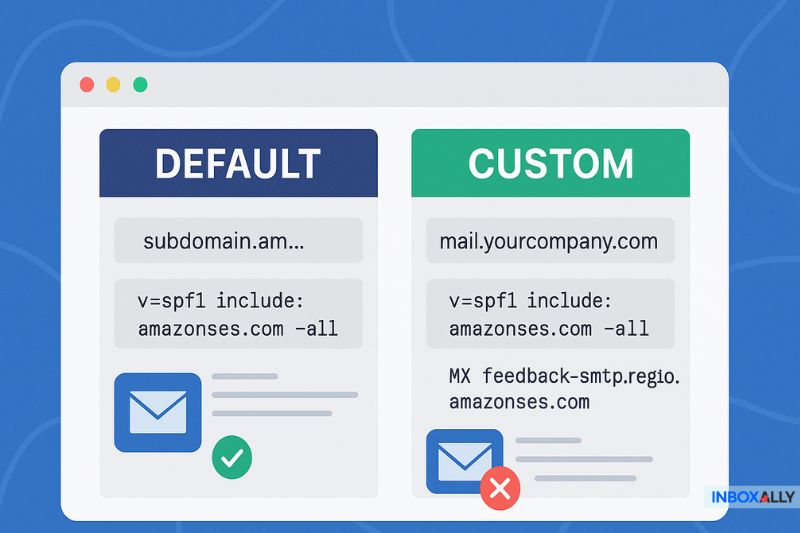
One of the most common mistakes even experienced users make is assuming Amazon SES handles SPF for them, no matter what. Yes, if you stick with Amazon’s default MAIL FROM domain (something like subdomain.amazonses.com), SPF is already set up.
But the moment you switch to a custom MAIL FROM domain (like mail.yourcompany.com), things change. Now, you have to publish or update the SPF record in your DNS server to include Amazon SES (v=spf1 include:amazonses.com -all). If you miss that, you may not even notice when your SPF checks fail until delivery rates become a problem.
Besides SPF, you also need to configure MX records properly for your MAIL FROM domain, pointing to feedback-smtp.region.amazonses.com. But if your MAIL FROM domain has multiple SPF and MX records (from old configurations or other mail systems), SES’s validation can break, and your sending setup won’t work.
Keep in mind that the AWS region codes (like us-east-1 or eu-west-1) need to match exactly in your MX and SPF entries, or you risk invalidating the setup.
If all this sounds a bit complicated, that’s because it absolutely can be, but getting them right means the difference between effortless sending and a day stuck in troubleshooting hell, so make sure you spend some time here.
If your custom Amazon SES setup is hurting deliverability, book a free demo with InboxAlly and let us help you rebuild your sender reputation and get your emails back into inboxes.
DKIM & DMARC: Completing the Trust Triangle
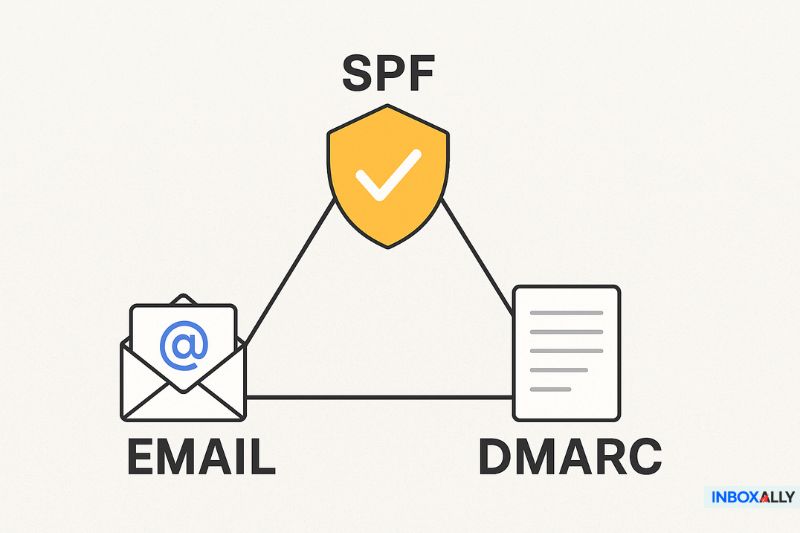
If SPF tells mailbox providers who is allowed to send on your behalf, DKIM (DomainKeys Identified Mail) tells them whether the message was tampered with on the way.
DKIM works by adding a cryptographic signature to your emails (a kind of digital seal) that the receiving server can check against your public DNS records. If the signature matches, it proves the message is authentic and hasn’t been altered.
With Amazon SES, setting up DKIM is surprisingly manageable thanks to Easy DKIM.
In the Amazon SES console:
- Generate DKIM settings for your domain
- Add the provided CNAME records to your DNS configuration
- Wait for verification
Once verified, SES will automatically start signing your outgoing mail, and your emails will lose the “via amazonses.com”. This makes mailbox providers much more likely to trust and deliver them.
However, DKIM and SPF only work with a DMARC (Domain-based Message Authentication, Reporting, and Conformance) in place. DMARC tells mailbox providers what to do if SPF or DKIM fails (quarantine, reject, or allow) and gives you reports on how your domain is performing.
All three of these authentication methods create a “trust triangle” that strengthens deliverability, protects your brand from spoofing, and ultimately boosts user engagement. Without them, you’re leaving gaps that modern mailbox filters will pick up on and penalize.
Have you set up SPF, DKIM, and DMARC correctly? Best verify it for free with our email tester to make sure your authentication is spot-on before you send your next campaign.
Real-World Setup Tips
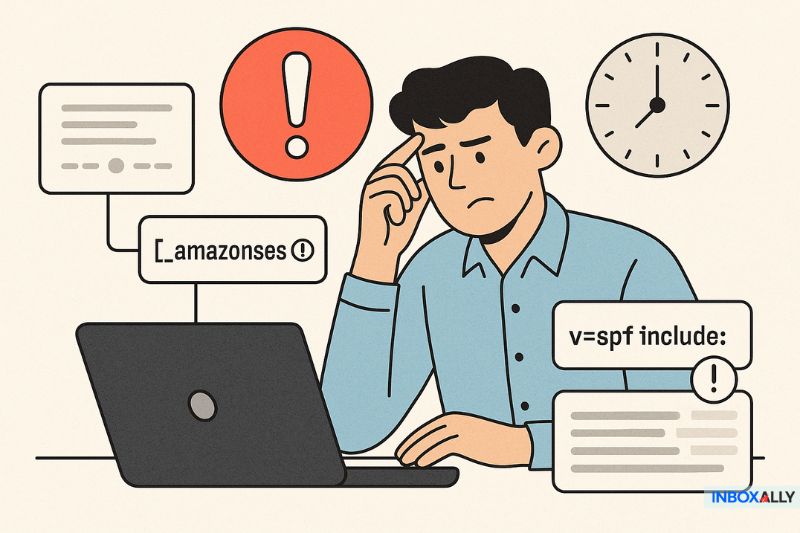
Even if you follow every SPF and DKIM guide perfectly, you can still run into issues, and while they’re usually not your fault, it’s best you know about them ahead of time. So let’s see what those are.
DNS propagation delays
When you update SPF or DKIM records, those changes don’t instantly apply across the internet. Depending on your DNS provider, it can take up to 72 hours for mailbox providers to start recognizing your updates. That means testing right after making changes might give you false failures, so be patient.
DNS provider issues
Some DNS platforms don’t allow underscores in record names (i.e., _amazonses), which forces you to adjust the formatting.
Others auto-append your domain name to record entries, so adding a period at the end of the name (to mark it as fully qualified) can save you from duplicate records. It’s also worth noting that TXT record formatting, like line breaks, extra spaces, or misplaced quotes, can break everything as well.
SPF “include” clutter
If you’re using multiple services (Amazon SES, Mailchimp, Salesforce, etc.), stacking SPF records doesn’t work—SPF only looks at the first matching record. You need to merge all includes into a single record, keep them clean, and under the 10-lookup limit.
So if you want to use your time smartly, make sure to plan for these potential issues ahead of time because it can save you hours of future frustration.
Testing, Verifying, and Staying Ahead
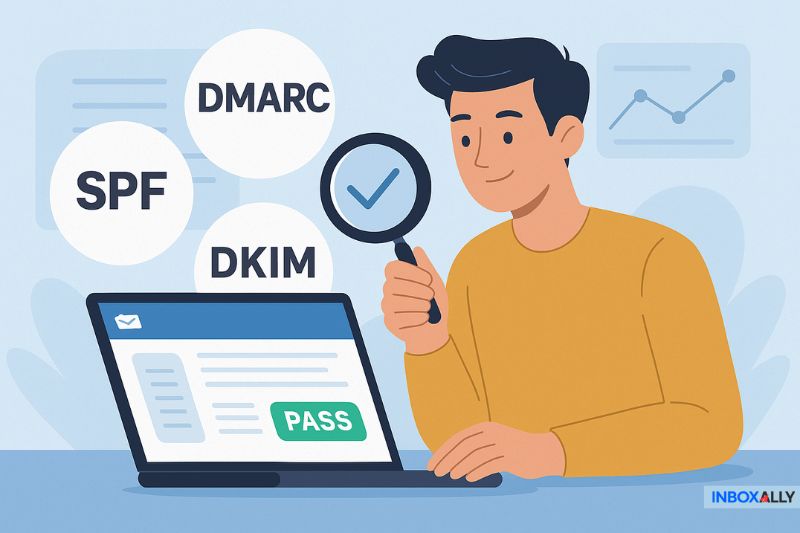
So you’ve set up SPF and DKIM—great! But how do you know they’re working?
Start by using MXToolbox or Google’s admin tools to run an SPF check. Send a test email to yourself, then open the full email headers and look for Received-SPF: pass. That’s a sign that the SPF record is correctly recognized. For DKIM, check that the signature is present and validates properly (you’ll see a DKIM-Signature header in the raw email).
But if you want the absolute best visibility, don’t forget DMARC monitoring. Once you have a DMARC record set up, you can receive regular reports showing how many of your emails passed or failed SPF and DKIM checks (and why). DMARC reports will help you spot new problems, like services you’ve added that aren’t yet covered by your SPF or DKIM setup.
Remember: email authentication demands ongoing work and maintenance. Domain ownership can change, DNS records can be accidentally overwritten, or you might add a new marketing tool that starts sending on your behalf. Regular domain verification keeps your authentication airtight and your deliverability in a good spot.
Final Thoughts
I hope this post has helped you become more confident in setting up SPF, DKIM, and DMARC in your Amazon SES setup.
Email deliverability is an ongoing process of improving trust and consistency with mailbox providers. And yes, it takes regular upkeep, testing, and a little patience.
If improving deliverability is on your radar, we’re here for you. InboxAlly helps senders improve inbox placement, boost engagement, and recover from deliverability issues, no matter how messy your current reputation may be.
Want to see what better deliverability could mean for your emails? Learn more or book a chat with our team—we’d love to show you what’s possible.