Have you got the “Cannot Get Mail – The connection to the server failed.” error?
Great. Now you have no idea who replied, who’s angry, or which deal just moved forward. It’s not just an annoying pop-up – that message can hide support tickets, billing issues, and leads that were ready to talk yesterday.
But don’t worry! In this article, we’ll walk through the best way to handle it: quick checks you can do in minutes and the deeper server and settings problems that usually sit underneath.
Key takeaways
- “Cannot Get Mail – The connection to the server failed” means your device can’t talk to the mail server. Start by checking your internet, restarting the mail app/device, then re-adding the mail account.
- If webmail works but the app doesn’t, fix your incoming server settings; if multiple people see the same error across devices, it’s almost always a server or provider issue.
What does the error even mean?

To explain it as you would to a fifth grader, Cannot Get Mail – The connection to the server failed problem is your phone saying: “I tried talking to your mail server and either it ignored me, answered in a way I don’t understand, or I couldn’t reach it at all.”
Under the hood, it usually comes from one of many buckets:
- Your network is unstable (bad Wi-Fi, mobile data off, captive hotel/airport Wi-Fi, aggressive VPN).
- Your login details are wrong or outdated (changed mail account password, expired app password, 2FA added, mailbox locked).
- Your server settings don’t match reality (wrong IMAP/POP choice, ports, SSL/TLS toggle, hostname typo).
- Your email provider is having a bad day (outage, maintenance, or rate limiting because of too many connections).
If you’ve got a feeling that “it could be anything,” you’re not wrong.
Because the error is so broad, you can’t “fix the message” directly. The only way to do it is to rule things out, one at a time: first the connection, then the account, then the settings, then the server. That’s the logic the rest of this guide will follow.
Quick sanity checks before you touch any settings
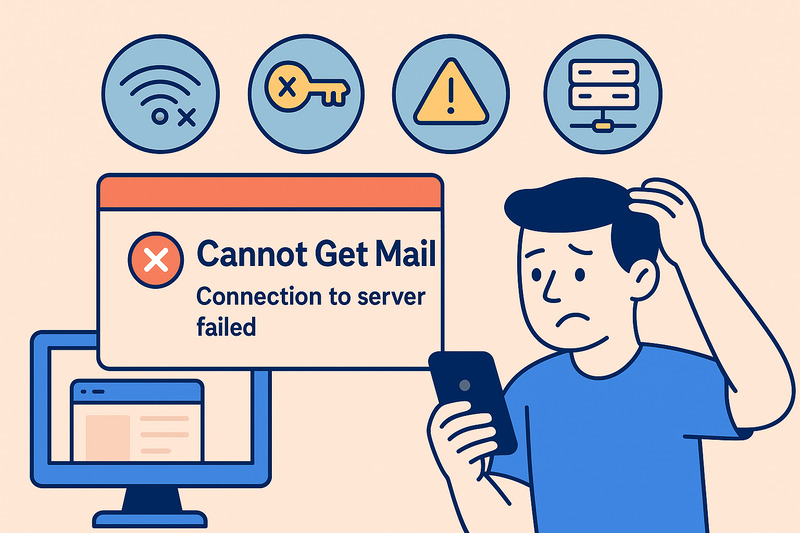
Before you touch any server settings, assume the problem is local. Nine times out of ten, it is.
First: check that the internet actually works. Open a browser, try loading a site that isn’t cached (type in a random news site). If it loads half-heartedly or not at all, fix that first.
A quick checklist that solves a lot of “Cannot Get Mail” moments:
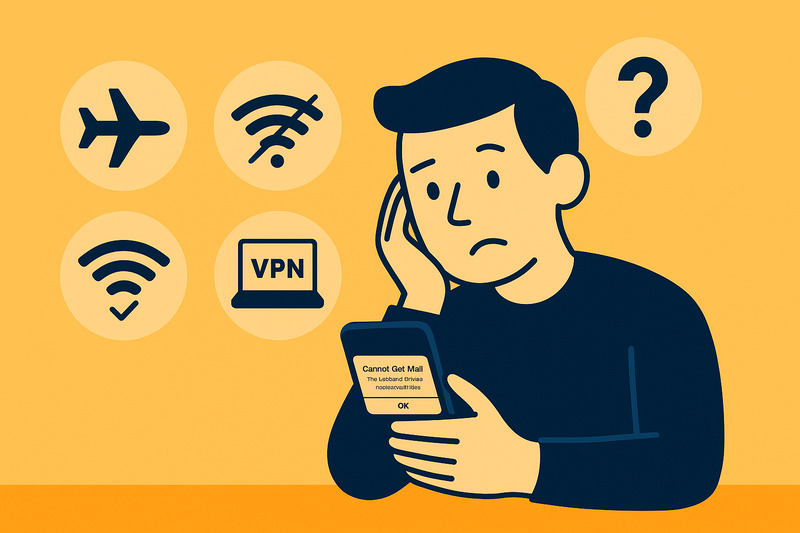
- Toggle Airplane Mode on and off. Sounds dumb, often works..
- Switch between Wi-Fi and mobile data. If mail works on one and not the other, you’ve found the weak link.
- Check for captive Wi-Fi. Hotel, airport, or café networks often need you to accept terms on a splash page before anything works.
- Disable VPN temporarily. Some VPNs block or throttle mail ports; turn it off and try again.
If the connection looks fine, move to the Mail app itself:
- Force-quit the app and reopen it.
- Restart the device. It clears stuck connections and half-failed sync attempts.
Only after you’ve done this round should you assume “the server is down” or “my account isn’t working.” The goal here is to clear out all the silly stuff before you start editing ports and hostnames.
Device-level fixes: what to try on iPhone, iPad, or Android
Once you know the internet itself is fine, the next question is simple: Is it just this device?
Most often, you’ll get this error inside Apple Mail, the Gmail app, or Outlook. They all rely on the same basic parts: a saved account, network access, and a stable sync. When any of those are not working, you see the error.
The first thing worth trying is the obvious one: fully close and reopen the mail app. Don’t just switch away; swipe it away so it actually shuts down and starts fresh. That clears a lot of half-finished sync attempts.
If that doesn’t help, restart the iOS device. A reboot resets network connections, cached DNS, and a bunch of things you never see but absolutely rely on.
If the error is still there, the next step is usually to remove the email account and add it back. On IMAP or Exchange, this doesn’t delete the mail from the server. It just wipes the local copy and forces a clean resync with fresh settings. For a lot of people, that’s how “cannot get mail” gets resolved.
If you’ve done all that, tried another app with the same account, and the error still keeps coming back, it’s time to stop blaming the phone. At that point, you’re likely dealing with a server, setting, or provider-side issue.
Incoming server settings: where “connection failed” often hides
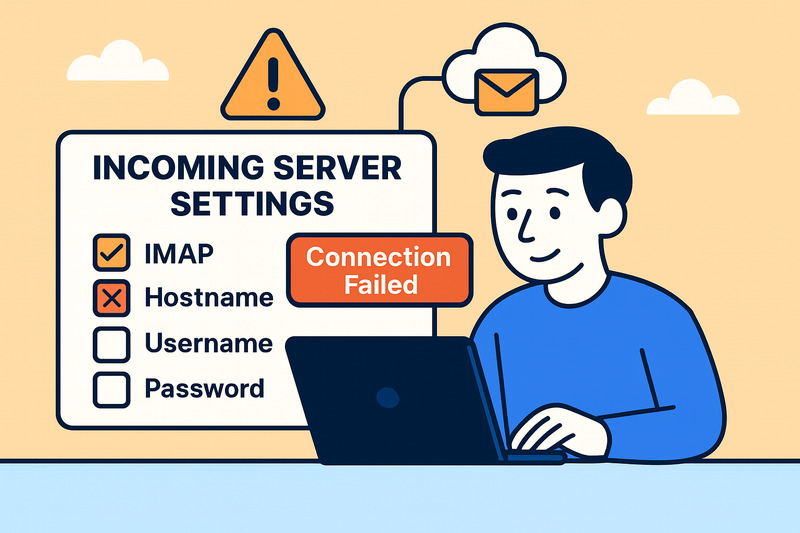
If the device looks fine, the next place problems like to hide is in the incoming mail settings.
Be aware of some basic concepts:
- IMAP keeps email on the server and syncs it across devices.
- POP pulls mail down to one device and is mostly legacy now.
- Exchange/ActiveSync handles mail, plus contacts and calendars in one go.
The “connection to the server failed” message can appear when one tiny detail in these settings is wrong. It can be as small as:
- A hostname using the wrong format (mail.yourdomain.com vs imap.provider.com).
- A username is missing the full email address when the server expects it.
- A port that doesn’t match the chosen security option (SSL/TLS on, but still using a plain-text port).
The practical way to handle this is not to guess. Open your provider’s setup guide or help centre and compare each field on your phone or laptop line by line. If you’re using a custom domain, the correct values are usually in your hosting panel or with whoever manages your DNS.
One useful clue: if everything fails on your office Wi-Fi but works fine when you switch to mobile data, the network might be blocking some email ports. In that case, the settings can be perfect, and your phone will still say the connection failed.
Rate limits, blocks, and DNS issues
Sometimes the error really is what it sounds like: your phone is knocking politely, and the server is just not cooperating.
This can be as simple as a temporary outage. Microsoft 365, Google Workspace, and other big providers and popular hosting companies have status pages for exactly this reason. When they’re having trouble, every device that tries to connect starts getting the same vague error.
Security rules can cause the same effect. Too many failed password attempts, new devices logging in from unusual locations, or very aggressive polling can trigger temporary blocks. From your device’s point of view, it’s just a failed connection with the same message again.
Lastly, DNS-related issues. These happen especially right after switching providers or changing MX records. Some parts of the internet may know where your mail server is hosted; others still think it’s somewhere else. While that’s settling, some devices connect fine, and others keep failing.
Where InboxAlly fits into this picture

InboxAlly uses controlled seed accounts that behave like real subscribers: they open your emails, scroll through them, click links, reply, pull messages out of spam, and mark them as important. Those actions match the engagement signals Gmail, Outlook, Yahoo, and others watch when they decide if a sender is safe to place front and centre.
Once your internet connection issues are gone and your settings are stable, InboxAlly helps you keep that hard-won access. The accounts you just fixed don’t just connect more reliably, they also start seeing more of what you send.
So if your emails land everywhere except where they should, it’s time to fix deliverability for real. Book a free InboxAlly demo and earn your spot back in the inbox.
When to escalate: support, IT, or your email provider
There’s a point where more tapping on your phone won’t fix anything. If you’ve:
- Checked your network and tried another one,
- Logged into webmail and confirmed the account itself works,
- Verified the incoming/outgoing server settings against your provider’s docs,
- Restarted the device and, if needed, re-added the account…
…and the error still shows up, it’s time to escalate.
Before you contact support or IT, collect a few basics so they don’t have to pull it out of you later:
- The exact error message and a screenshot.
- Mobile device and app (“iPhone 14, Apple Mail” beats “my phone”).
- Rough time it started, and whether anyone else on the team sees it.
That small bundle of context lets us support skipping the script and move straight into real diagnosis.
Wrap-up: keep connections stable, then grow performance
If your mail client can’t stay connected, nothing else matters. Fix the basics first: network, settings, server health. Once that’s in check, then it makes sense to think about opens, clicks, and how mailbox providers judge you.
If your connection is stable but inbox placement still lags behind your effort, that’s usually a reputation story, and that’s where bringing InboxAlly into the mix can help your messages show up where they belong. Book a free demo and see it in action.