
Every email account relies on a foundation you usually never think about: the incoming mail server hostname.
When this setting is missing or wrong, nothing works — messages don’t sync, accounts can’t connect, and delivery becomes impossible. For something so technical, it has a significant impact on the reliability of your day-to-day communication.
In this article, we’ll explain the importance of this single field, how it fits into the larger email system, and what happens behind the scenes when it’s configured correctly. You’ll also learn where to find it, how to set it up, and how precision here can prevent a long list of deliverability issues down the road.
Let’s begin!
Key Takeaways
- The incoming mail server host name tells your email app where to find your messages.
- It’s central to sync, authentication, and overall inbox stability.
- Configuring it correctly keeps messages flowing and protects your domain’s deliverability.
What that line does

Every inbox needs an exact location to function properly. The incoming mail server host name is that location — the address your mail app uses to find your messages.
If that address is even slightly wrong (a typo or the wrong protocol), the app has nowhere to go. Gmail uses imap.gmail.com. iCloud runs on imap.mail.me.com, while its outgoing mail server relies on smtp.mail.me.com to send messages through the Simple Mail Transfer Protocol. Each one points your client to a specific destination, and the system only works when the path is correct.
IMAP vs. POP: how your inbox behaves
Once the app finds the right server, it has to decide how it communicates with it. IMAP (Internet Message Access Protocol) and POP (Post Office Protocol) are the two main options, and they determine how your inbox functions day to day.
IMAP keeps everything stored on the server. It syncs every folder, status, and change between devices. If you delete an email on your phone, it disappears from your laptop too. This is the default for most modern email systems because it’s so simple to use.
POP, on the other hand, works like downloading files to a single device. It pulls messages from the server and often deletes them afterward. It’s a leftover from an era when people checked mail on one computer. Today, it mostly causes confusion and is generally not used except in some specific cases.
Why do hostnames look strange
Hostnames could seem random: imap.zoho.com, mail.secureserver.net, pop.mail.yahoo.com. But there’s structure in this pattern. The first part, imap or pop, tells your app which protocol to use. The rest points to the domain of the email provider.
How to find and set it up
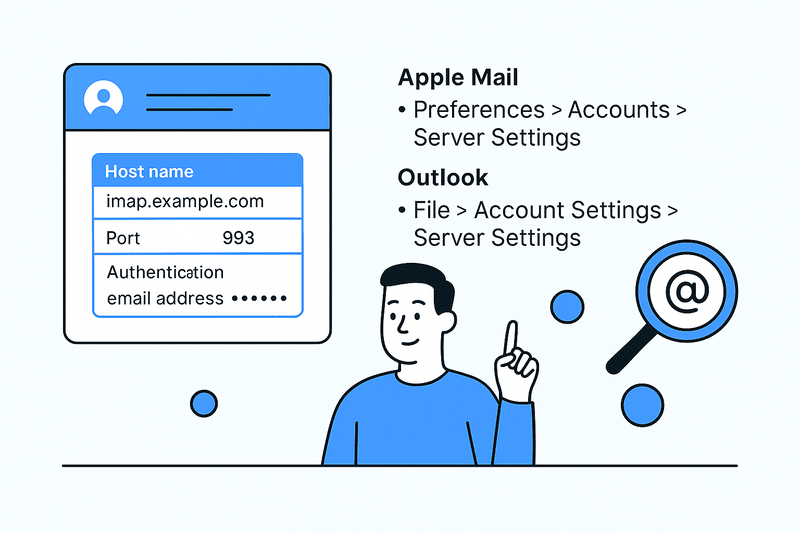
Finding the incoming mail server hostname isn’t hard, but you do have to know where to look. Every email client hides it somewhere under the incoming mail server settings.
Here’s how to find it in some popular apps:
- Apple Mail: Preferences > Accounts > Server Settings
- Outlook: File > Account Settings > Server Settings
- Thunderbird: Account Settings > Server Settings
- Gmail (custom domains): Settings > Accounts > Server Info
Each of these contains the same three elements:
- Host name – the address of your mailbox.
- Port number – usually 993 for an IMAP server or 995 for POP.
- Authentication – your email address and password, sometimes with SSL or TLS enabled.
For personal Gmail or iCloud accounts, the hostname is prefilled and very easy to miss. For business domains, it’s a bit more complex. Your domain and your mailbox aren’t always in the same place because your website might be hosted on one server, while your email is elsewhere.
In that case, check your DNS or hosting dashboard. Most incoming mail servers follow the format:
imap.yourdomain.com or mail.yourdomain.com
But larger setups usually use third-party infrastructure like:
- outlook.office365.com (Microsoft 365)
- imap.gmail.com (Google Workspace)
- imap.secureserver.net (GoDaddy)
Your address might say @yourcompany.com, but your mail could be stored on a completely different platform.
The chain of trust
When checking for new mail, your device connects to the hostname through an encrypted port, authenticates your credentials, and validates the SSL certificate. It’s an ongoing “handshake” that’s fast but also fragile.
Most “email outages” happen because the address leading to it no longer lines up. If even one parameter is wrong, like a mistyped hostname or a closed port, your inbox stops updating, and the app simply waits.
Why getting it right matters

By now, you probably know that email deliverability begins long before you send the email. It mostly boils down to how your mail server is identified and verified. Your incoming mail server hostname might look like a minor detail, but it’s part of the same ecosystem that determines whether other servers trust you.
When there’s a mismatch between the domain records, SSL certificate, or MX configuration, receiving servers could interpret your messages as inconsistent. Even if your content is great, you might end up with missed syncs, false “mailbox unavailable” errors, or messages simply landing in spam. Gmail explains more in its Postmaster Tools guide.
Servers talk to each other in patterns, checking identity, encryption, and DNS alignment. If you break that rhythm with poor configuration, it can make an otherwise healthy setup appear unreliable.
The deliverability connection
InboxAlly is one of the tools you can use to strengthen that foundation on which deliverability rests. It doesn’t exactly replace mail settings, but it does help them run properly. It helps you rebuild and maintain trust with all major email service providers by training algorithms to recognize your emails as authentic.
Every receiving server evaluates not just the content of a message, but also the infrastructure we’ve just talked about, and without that consistency, your campaigns are more likely to end up in spam for reasons that look random but aren’t.
Want to see how that works in practice? Book a free InboxAlly demo and watch how real-time engagement training improves inbox placement, sender reputation, and overall deliverability — all without changing your setup.
The cost of tiny mistakes
Small errors carry big consequences. Here are some of the most common ones:
- Entering your email address where a hostname should go.
- Copying another user’s configuration, assuming both accounts are on the same domain.
- Using generic prefixes like mail. or imap. without checking your provider’s actual setup.
Each of these issues can create partial connections where your phone might sync, but your desktop refuses. Fixing it usually takes longer than setting it up correctly from the start, so be prepared.
What’s happening on the server side

Sometimes, the reasons for a faulty setup are outside your control. Providers occasionally change hostnames during maintenance, migrations, or server upgrades. DNS records take time to update worldwide, SSL certificates expire, and new IP ranges can appear overnight. From your perspective, it looks like something broke on your end, but in reality, the server is just catching up.
This is why problems sometimes resolve themselves hours later without you changing a thing. Email depends on an intricate web of propagation through global routing, and every update has to be applied through hundreds of servers before the system stabilizes again. Knowing how propagation works can help you stay calm when connection errors pop up all of a sudden.
The beauty of global consistency
For all its complexity, email remains one of the most standardized systems in modern communication. IMAP, POP, and SMTP have existed for decades, and every client, from Apple Mail to Outlook to Thunderbird, still uses the same shared system.
That consistency is what makes email so resilient. You can switch providers, migrate domains, or access your inbox from a new device halfway across the world, and it still works because the structure hasn’t changed. The hostname brings all of it together, and once it’s configured correctly, you rarely have to touch it again.
It’s easy to overlook this stability when something goes wrong, but the fact that these systems interoperate at all is remarkable. Billions of devices exchange messages every day through the same small set of rules, and the incoming mail server hostname is that single line of text that connects an entire global network.
Wrapping up
Your incoming mail server host name is what keeps your inbox reliable, your messages synced, and your domain reputation intact. One correct line of text connects everything: device, server, and trust.
If you’re already managing your configuration right, the next step is making sure your emails actually reach people. That’s where you might need InboxAlly. It teaches mailbox providers to recognize your messages as legitimate, strengthening deliverability from the ground up.
Learn more about how InboxAlly helps maintain sender reputation and keep your emails where they belong.