About the author:
*Darren Blumenfeld is the CEO and Founder of InboxAlly, an email deliverability platform trusted by growth-focused marketers. He’s previously founded HonestMail, worked at NASA, and holds degrees from Tufts and Columbia. His passion for tech, education, and creativity continues to inspire innovation in email outreach.*
If you’ve ever needed to send the same email to a long list of people, but still wanted each message to feel personal, you’re not alone. Whether you’re announcing a new product, running a campaign, or reaching out to valuable leads, mass emails work best when they don’t look like mass emails.
The good news? Most email platforms make it easy to send a single message to multiple recipients individually, so each person receives their own private email without seeing anyone else on the list. It feels personal, boosts engagement, and helps keep you out of spam folders.
Below, we’ll walk through how to send mass emails individually using Gmail, Outlook, Yahoo Mail, and other built-in tools. You’ll also learn the pros and cons of each method, why personalization matters, and how to keep your emails deliverable.
Let’s get started.
Key Takeaways
- You can send a mass email individually by using tools like Gmail Multi-Send, Outlook mail merge, or Bcc to deliver one message to many people while giving each recipient their own private copy.
- This approach makes your outreach feel more personal, increases engagement, and improves inbox placement compared to traditional bulk emails.
Why Personalization is Important in Sending Mass Emails
Personalized emails not only look better, but they perform better as well. When an email feels relevant, your subscribers are more likely to open, click, and engage with what you send.
Personalization helps you:
- Avoid spam triggers
- Improve open and click-through rates
- Build better relationships with subscribers
- Stand out from generic, bulk messages
- Convert more leads into customers
And if you use drip campaigns, dynamic personalization (like referencing recent actions or preferences) can make your messaging feel more tailored and timely.
Just keep in mind: personalization only works well when your email actually reaches the inbox. For that, you need strong email deliverability. With InboxAlly’s Preset Engagement Profiles, you can warm up new domains, strengthen your sender reputation, and help your campaigns land where they should: the primary inbox.. Get started with InboxAlly today and see the difference tailored strategies can make.
How to Send Mass Emails to Multiple Recipients Individually
Outlook’s built-in mail merge feature lets you send one email to many people, each receiving their own personalized version.
Here’s how to set it up:
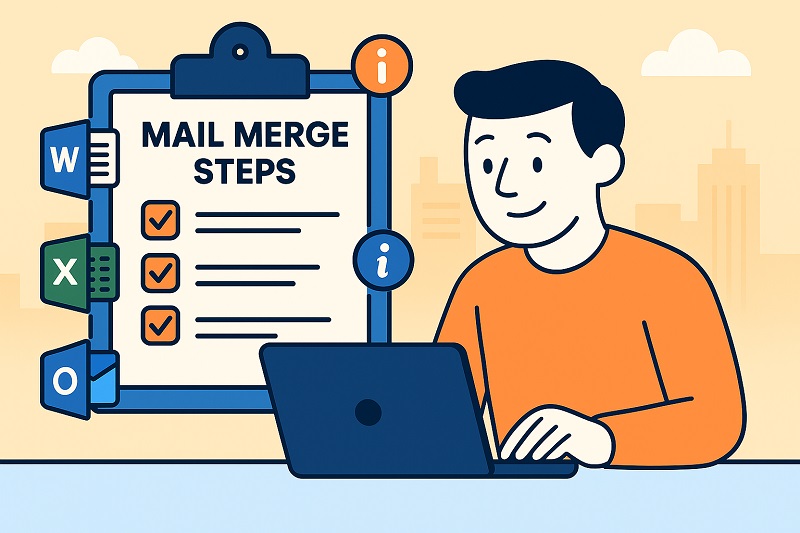
- Open Microsoft Word and create your email message.
- Go to Mailings > Start Mail Merge and choose Email Messages.
- Click Select Recipients > Use an Existing List… and upload your Excel mailing list.
- Use Insert Merge Field to add personalized placeholders (like name or company).
- Click Finish & Merge > Send Email Messages.
- Select the email column for the To field, add your subject line, and send.
Outlook will now deliver your emails individually, each with unique personalization.
Cons of Sending Mass Emails in Outlook Using Mail Merge
While you can send individual emails in Outlook using mail merge as long as you have a valid Microsoft 365 subscription, the feature comes with several drawbacks that can limit your email campaigns:
- No Subject Line Personalization – Sending emails on Outlook via mail merge gives your recipients the same subject line, leading to less engagement. Many studies show personalized subject lines can boost open rates by 25–45% depending on audience and conditions
- No Email Tracking or Analytics – Outlook’s native mail merge doesn’t include reporting tools. You won’t see who opened your email, which links were clicked, or whether your messages went to the spam folder. Without metrics like open rates, bounce rates, or deliverability signals, it’s harder to measure campaign performance.
- Multiple Steps and a Manual Workflow – Mail merge requires switching between Word, Excel, and Outlook, which can feel clunky- especially if you’re sending time-sensitive campaigns. Compared to modern email marketing tools with templates, automation, and built-in personalization, Outlook’s workflow can slow you down.
- Sending Limits Still Apply – Microsoft 365 accounts have daily send limits (typically around 10,000 recipients per day and ~30 emails per minute depending on the subscription). Large mail-merge campaigns can be throttled or temporarily blocked if you exceed these limits.
- No Support for Attachments in Mail Merge – Native mail merge doesn’t allow you to attach files to individual messages. If your campaign needs documents, PDFs, or presentations, you’ll have to use third-party add-ons or send them manually.
#2: The Blind Carbon Copy (Bcc) Method
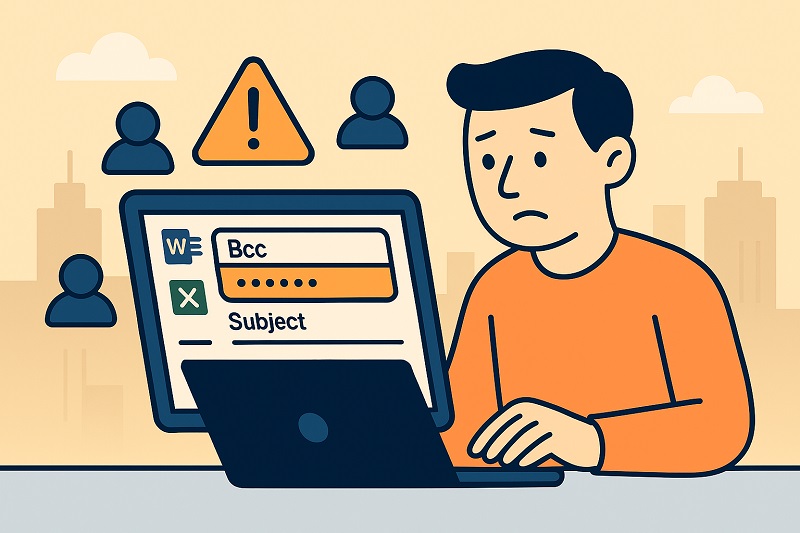
Sending bulk emails via blind carbon copy allows you to send the same email to recipients without them seeing each other’s email addresses. Also, none of your Bcc recipients will know who else received the email since this method essentially hides other recipients, creating an illusion of a personalized message.
To send emails to multiple recipients via the Bcc method in Gmail, Outlook, and Yahoo Mail:
In Gmail
- Open Gmail and click Compose.
- Click Bcc and add all recipient emails.
- Put your own email in the To field.
- Write your message and hit Send.
In Outlook
- Open Outlook and select New Email.
- Add your message and subject line.
- Enter all recipients in Bcc and your email in the To field.
- Click Send.
In Yahoo Mail
- Open Yahoo Mail and click Compose.
- Select BCC and add all recipient addresses.
- Put your email in the To field.
- Click Send.
Cons of Using the Bcc Method in Mass Emails
Sending email campaigns using blind carbon copy has several disadvantages, which include:
- Minimal Personalization – Whether using Bcc in Gmail, Outlook, or Yahoo Mail, the feature doesn’t let you personalize your email content, including the subject line. Each of your recipients will receive the same email, which can lead to fewer engagements and conversions.
- Risk of Triggering Spam Filters – Since generic mass emails are less targeted than personalized emails, recipients can mark them as spam. Emails sent to multiple recipients via Bcc can also trigger spam filters, which might affect your email deliverability. Use this free spam checker tool to find out your spam score and learn what it takes to avoid spam folders.
- Limited Email Tracking and Analytics – Sending emails via free email service providers (ESPs) doesn’t give you access to tracking and analytics tools critical for evaluating the success of your email marketing campaigns.
#3: Send a Mass Email to Multiple Recipients on Gmail via Multi-send
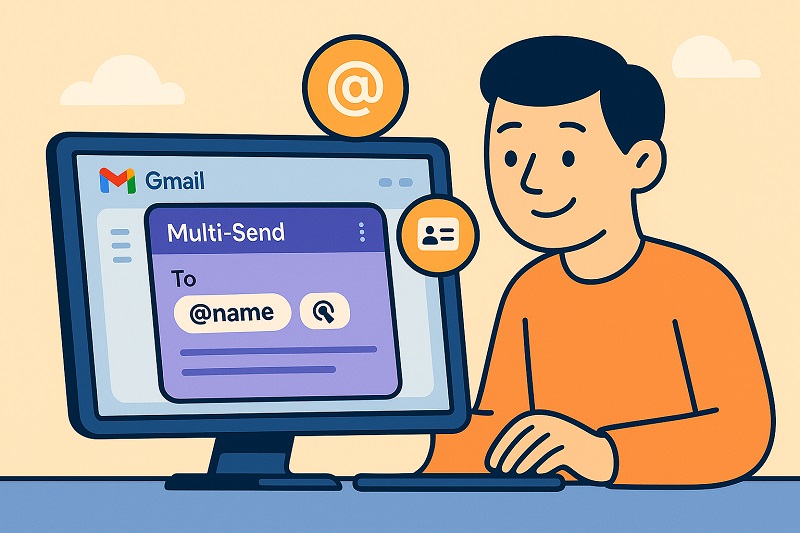
Gmail’s Mail Merge (formerly Multi-Send) sends one email to many contacts individually, without using Bcc. It’s available on Google Workspace plans.
Here’s how to use it:
- Open Gmail on the browser and log in to your Gmail account.
- Select the Compose button on the top-left to open the email composer window.
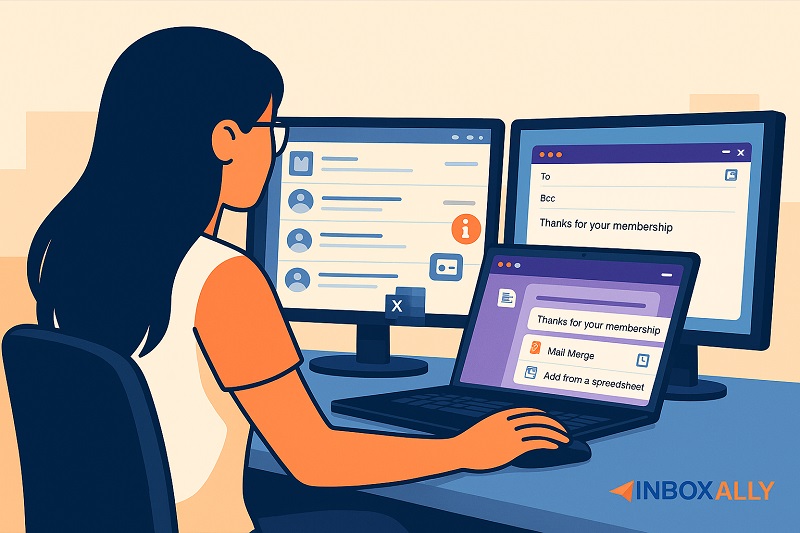
- Click the Mail Merge icon on the top-right of the window (next to the Bcc icon) and tick the Mail Merge checkbox to enable it.
- Once turned on, the composer window will be purple. Your emails will also include an unsubscribe link at the top left.
- Once added, you can create your email and personalize it by placing merge tags. To do this, use the “@” key and choose from the tags linked to your spreadsheet’s headers.
- After completing your email and adding a subject line, you can send a test email to yourself by clicking Continue > Send preview.
- Once ready, you can send your mass email to multiple people by choosing Send All. Gmail will now send a unique copy of the message to multiple recipients individually.
Cons of Sending Mass Emails With Gmail Multi-Send
Below are some cons of sending a mass email to multiple recipients using Gmail’s Multi-Send feature:
- Daily Email Sending Limit – Gmail’s Multi-Send only allows 1,500 maximum messages and recipients per day, which is minimal compared to modern email marketing software. This limit may also cause delays to your campaigns.
- Lacks Subject Line Personalization – Like other methods in the list, Gmail doesn’t allow you to personalize your subject line, potentially affecting your open rates.
- Higher Costs – To access Gmail’s Multi-Send, you must be subscribed to Google Workspace’s Individual plan, starting at $10 per month, or higher. Some email automation tools can provide mass email to multiple recipients at a cheaper price and offer more features.
Advantages of Sending Mass Emails Individually
Learning how to send a mass email individually with the right level of personalization can make a real difference, especially if you’re running outreach campaigns.
It’s an effective way to promote your products or services at scale because you can reach hundreds, or even thousands, of prospects with a single message, while still giving each person their own version of the email. It’s also far more efficient than manually writing and sending messages one by one, saving you time without sacrificing quality.
That said, keeping your mailing list updated is essential if you want your mass emails to perform well. You’ll want to make sure every subscriber on your list is still active and genuinely interested in hearing from you.
This helps prevent spam complaints and protects your sender reputation. You can also use double opt-ins and list segmentation to send more relevant content to different groups, helping you connect with subscribers in a way that feels personal rather than generic.
Final Thoughts
Sending mass emails to multiple recipients individually is one of the easiest ways to boost engagement and avoid spam filters, whether you’re using Bcc, Outlook’s mail merge, or Gmail’s built-in tools. Each method has its pros and cons, but all let you deliver a message privately and efficiently to large groups.
Of course, none of this matters if your emails don’t reach the inbox. That’s where InboxAlly comes in. In as little as 4-14 days, you can see significant improvements in inbox placement, engagement, and open rates.
Want to see exactly where your emails land? InboxAlly offers real-time tracking and 30-day inbox history so you can monitor your campaign performance with confidence.
Start your free 10-day trial today and watch your email campaigns thrive.