
This is one of the most unhelpful lines in Apple Mail you can get, and it happens when nothing else seems wrong. The internet’s fine, the password’s correct, yet Apple thinks otherwise…
What’s really going on is a breakdown in the agreement between Apple, your email service provider, and the security rules that keep the whole system running… and it can be frustrating.
In this article, we’ll take a look at how Apple Mail handles identity, why authentication fails even when you do everything right, and what that says about Apple’s larger obsession with trust.
Key Takeaways
- “Authentication failed” is an error that shows up when Apple Mail is blocking an unverified connection. Expired passwords, SSL mismatches, or revoked tokens break the trust chain, and Mail stops instantly to protect the system.
- Apple’s system is built to protect. By enforcing strict authentication rules and encryption standards, it prioritizes security over convenience. One correct setup, a thousand ways to get it wrong.
“Authentication failed”… but why?

When Apple Mail says “Authentication failed,” it is essentially just enforcing protocol.
When you open the Mail app, it connects to your provider’s IMAP and SMTP servers to verify your email account credentials. That’s a handshake. Not a metaphorical one, but a literal data exchange: the username, password, encryption type, and authentication method must all be correct.
If one of those details doesn’t match (i.e., the password is outdated or the app-specific password has expired), the handshake stops midway. At that point, Apple Mail doesn’t retry under uncertainty. It shuts the connection down immediately, because allowing an unverified session would break Apple’s highly valued trust model.
This is why “Authentication failed” is such a broad but accurate status, which usually means that your connection isn’t incomplete in some way.
The failure across providers looks the same on screen, but happens for different reasons:
- iCloud Mail: Almost always an expired app-specific password. Apple revokes these whenever your Apple ID or two-factor settings change.
- Gmail: Google retired less secure apps. Apple Mail must now use OAuth, which needs to go through external Google verification in your default browser via a secure link.
- Outlook / Office 365: These accounts also moved to Modern Authentication (OAuth2). Legacy username-password logins no longer work.
- Yahoo and others: With two-factor authentication enabled, these require a generated app password instead of your main login. Using the wrong one guarantees failure.
Each provider has its own “dialect” of authentication. Apple Mail simply acts as the translator. It’s strict, literal, and unwilling to proceed unless everything is set up correctly. That’s why it fails, and it is usually right to.
Where things go wrong
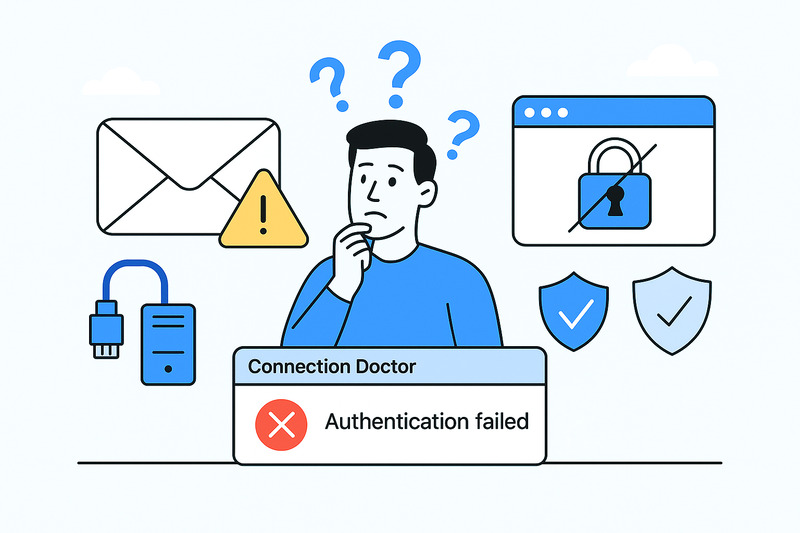
What looks like a random bug under this error is almost always a small break in the chain between your credentials, Apple’s local cache, and your provider’s servers.
Most of them start with something small and unnoticeable:
- Expired or revoked app-specific passwords: Apple automatically invalidates them after password changes or security resets.
- Outdated entries in Keychain or Mail cache: Apple Mail keeps old tokens that no longer match the current credentials, the ones it often fails to delete automatically.
- SSL/TLS mismatches: macOS updates or server-side security changes can make Mail’s encryption handshake incompatible.
- Wrong port numbers: IMAP (993) and SMTP (587) are the defaults, but some providers still point to 465 or 143, which Apple will refuse.
- Provider policy changes: Google, Microsoft, and Yahoo occasionally retire older webmail methods, and Apple keeps trying the old one until it fails.
All these issues can produce the same “Authentication failed” banner, even though the root cause is something entirely different.
Local corruption and cache issues
Now, how about the mess Apple doesn’t advertise: its own configuration data. The Mail preference file and Keychain hold every saved login, token, and encryption choice. When those entries get corrupted (often after a macOS update or a sudden crash), sometimes the only fix is to re-add the new account from scratch so Mail rebuilds clean settings.
That’s why the Connection Doctor tool in Mail is useful. It shows which side, incoming (IMAP) or outgoing (SMTP), is failing the handshake. Quite often, it’s the only visible clue.
The system-wide chain reaction
Because iCloud syncs Mail account settings on all devices, one bad token spreads instantly. A login failure on your Mac computer can make your iPhone and iPad light up with the same “Authentication failed” error message seconds later. The system is designed to stay consistent, but when the data syncing is wrong, the failure multiplies.
The irony is that the more air-tight Apple builds its ecosystem, the wider a single issue travels.
Apple’s email account security over convenience
Whenever you send an email or refresh your inbox, the Apple main system becomes a “referee” between your device and your email provider that validates every part of the connection before letting a single byte move.
It checks whether SSL is active, the encryption method matches, and your password token is properly signed and still valid. If any of those tests fail, the connection is stopped. There’s no “try anyway” button because that’s not how Apple’s mailing system is designed. Every authentication failed warning is Apple’s way of saying that the connection doesn’t meet the standard.
That strictness might feel punishing, but remember that it’s exactly what keeps phishing, spoofed logins, and man-in-the-middle attacks out of reach. Apple doesn’t trust partial compliance: either the connection is secure, or it doesn’t happen.
One correct setup, a thousand wrong ones
Apple’s stance on control is famously limited. In Mail, you can’t disable SSL, skip authentication, or experiment with unverified ports like 143 or 465. That frustrates power users who are used to open mail clients such as Thunderbird or Outlook, where configuration freedom comes with risk. Apple’s philosophy is the opposite: reduce variables until everything is predictable.
This annoying rigidity is what keeps the “single truth” between devices. If your Mail account works on one Apple device, it should behave identically everywhere with the same credentials, same server settings, and same authentication flow. That uniformity only exists because Apple disallows workarounds that might fragment behavior between these devices.
It’s easy to miss how technical this minimalism really is. Underneath the clean Mail window is a security architecture that’s anything but simple: token verification, sandboxed credentials, Keychain isolation, and mandatory TLS handshakes on every sync.
All in all, Apple’s tradeoff is deliberate: fewer knobs to turn, fewer mistakes to make, fewer entry points to exploit. It’s less about trusting the user and more about trusting the system. Simple.
Authentication as deliverability
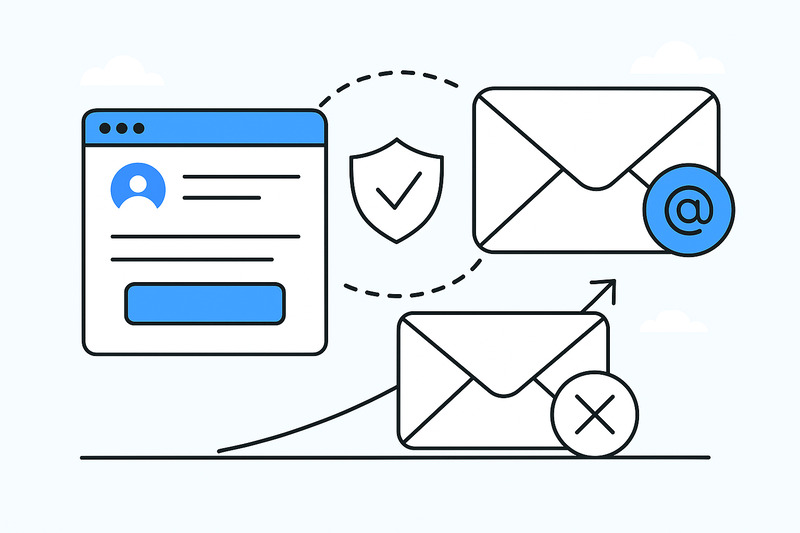
“Authentication failed” is based on the same principle that decides whether your emails ever reach someone else’s inbox.
On the user side, that error means Apple Mail couldn’t confirm who you are. On the sender side, mailbox providers apply the same logic to your domain. If your SPF, DKIM, or DMARC records aren’t in place, your message doesn’t pass authentication and usually lands in spam or disappears altogether.
Both systems run on the same philosophy: no verified identity, no delivery. Apple applies it to you as a user; email providers apply it to you as a sender. That’s why marketing teams that don’t authenticate their emails end up in junk folders and why even personal users see “cannot verify account name or password.” It’s the same handshake, just happening in reverse.
Apple’s Mail app enforces this trust model automatically. If it can’t confirm encryption or token validity, it doesn’t guess. It blocks. Gmail, Hotmail, and Yahoo follow the same rule when filtering inbound mail. That consistency across the ecosystem keeps spam low — but it also punishes weak configurations mercilessly.
The role of InboxAlly
Instead of waiting for trust to fail, InboxAlly strengthens it. It helps senders keep good domain reputation and engagement, the very data that inbox providers use to decide whether to deliver or deflect a message.
It’s a kind of proactive version of fixing Apple Mail’s “authentication failed.” Rather than repairing a broken trust chain after the fact, InboxAlly makes sure your authentication, engagement, and sending patterns never break it in the first place. The result is the same across the board: easy verification, stable delivery, and mail that lands where it’s meant to.
See how it works: book a quick demo with InboxAlly and keep your messages trusted from the first send.
Wrap-up
“Authentication failed” means Apple Mail stopped verifying trust before sending your message. Somewhere between Apple Mail and your provider, the chain broke, and Apple did what it always does: stopped instead of guessing.
For everyday users, that means fewer surprises. For senders, it’s the same rule at scale: maintain authentication and domain reputation before anything leaves your server. Do that, and this error turns from a red flag into something you barely remember seeing.