
Google Postmaster Tools V2 changes what Gmail shows senders, and Google has explained the change in its own words.
For years, the first thing a lot of senders checked in Postmaster Tools was the domain reputation label, a single word that read High, Medium, Low, or Bad. It was the closest thing to a report card Gmail offered. Then Google announced it would retire the Domain and IP Reputation dashboards, explaining that reputation data is “not easily actionable for most senders.”
Google Postmaster Tools V2 works less like a report card and more like a to-do list. Here’s what each report shows, what V2 leaves out, and how to build a routine around it.
Key takeaways
- Google Postmaster Tools V2 is Gmail’s free tool for email senders. It shows whether your domain meets Gmail’s sender requirements, how often personal Gmail users report your mail as spam, how your mail authenticates, and how often Gmail rejects or defers it.
- V2 doesn’t show inbox placement. Its spam rate counts spam reports from recipients, not mail Gmail sends to spam on its own. A placement test shows where a test send lands, inbox or spam.
What changed in Google Postmaster Tools V2
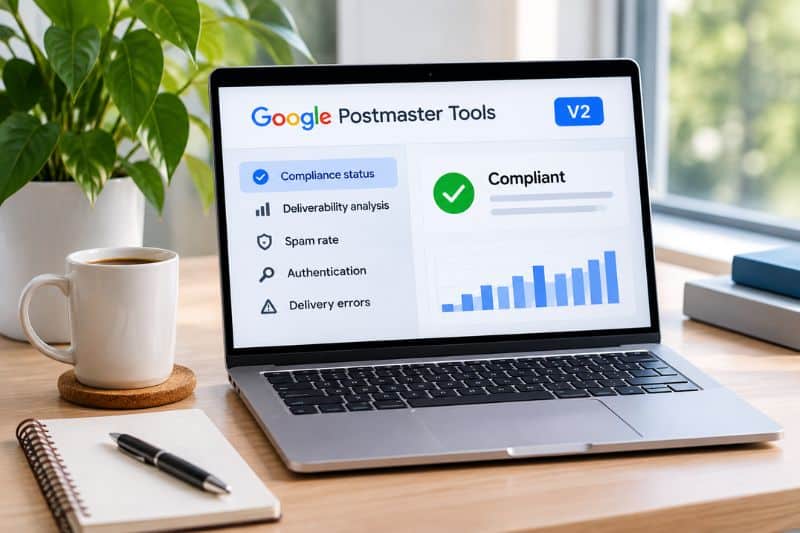
Google launched V2 in 2024, and the biggest change is its focus. The old interface revolved around reputation. V2 revolves around compliance, with a page that goes through Gmail’s email sender guidelines one requirement at a time and tells you which ones you meet.
The Domain and IP Reputation views are on their way out. In its deprecation notice, Google says the current Reputation dashboard “is being replaced with a new, more intuitive version,” and that “changes in sender behavior are slow to reflect in the existing dashboard.” Google has also postponed retiring the legacy interface and says more on timing will follow.
The other reports are still there. Spam rate, Feedback loop, Authentication, Encryption, and Delivery errors all carried over to V2, which also adds Deliverability analysis. Google is retiring the V1 API too, and the V2 API covers everything the old one did except Domain and IP reputation, plus new endpoints for compliance status, domain management, and batch requests.
Compliance status: a to-do list
Start with Compliance status since it follows Gmail’s sender rules one by one and gives each of them one of three labels: Compliant, Needs work, or No data found.
These checks apply to every sender:
- DNS records
- SPF and DKIM authentication
- Message formatting
- Encryption
- User-reported spam rate
If you send about 5,000 or more messages to personal Gmail accounts in 24 hours, counting everything from your primary domain, Gmail treats you as a bulk sender and adds three more checks: DMARC authentication, one-click unsubscribe, and honoring unsubscribe requests. Google says senders who meet that threshold once are permanently considered bulk senders.
Two things on this page are easy to misread.
The first is “No data found.” It means Gmail hasn’t seen enough of your mail to judge that requirement. New domains and smaller senders see it all the time, and it isn’t a pass.
The second is timing. The page is built from mail Gmail has already received, not from a fresh look at your DNS, and, according to Google, changes can take up to 7 days to appear. Refreshing the tab every hour won’t turn “Needs work” green any sooner. Check your fix right away in a message header, with a tool like our Email Header Analyzer, or in your ESP’s authentication report, and let Postmaster Tools catch up on its own time.
There’s one more quirk. You can only see the status for your primary domain, so mail from news.yourdomain.com, billing.yourdomain.com, and the main domain all count toward the same status. That means one forgotten sending tool can put the whole domain in “Needs work.”
What Deliverability analysis tells you
If you only read one part of V2 each week, make it this one. Tucked under Compliance status, Deliverability analysis gives you a recommendation about your domain’s standing with Gmail.
According to Google’s documentation, a recommendation appears when:
- You send too little email.
- Your messages fail to deliver.
- You go over the recommended spam threshold.
- Recipients indicate that they didn’t open or interact with your email.
- Recipients indicate that they want more of your messages.
- You don’t meet the email sender guidelines.
The fourth and fifth items stand out, because they are about recipients. Google lists recipients indicating that they “didn’t open or interact with your email,” or that they “want more of your messages,” among the reasons you get a recommendation.
The “too little email” note calls for a calm reading, though. Google doesn’t say more about it. In our reading, it most likely means Gmail doesn’t have enough of your mail to go on yet, so treat it as a data gap first.
What the spam rate counts
Out of everything in the new version of Postmaster Tools, the spam rate is the first thing you should closely watch after a big campaign. According to Gmail’s sender guidelines, you should keep your spam rate below 0.1% and avoid ever reaching 0.3% or higher.
The definition matters here. Google defines spam rate as the share of your messages delivered to engaged recipients’ inboxes that those recipients then mark as spam. It also only covers DKIM-authenticated mail, so if DKIM is missing or failing, the chart has little to nothing to show.
Google’s help page spells this out: “If Gmail automatically sends a significant number of your messages to spam, the rate shown in the dashboard might seem low, because recipients get fewer of your messages in their Inbox.” People can’t report an email they don’t see, so the rate can look low while more of your mail is landing in the spam folder.
It can cut the other way too: when placement improves, more people see your mail, and a few more may report it. Either way, Google warns that “the longer you allow high spam rates, the more likely more of your future messages will be sent to spam,” so a rising rate is worth checking whatever the cause.
The rest of the toolbox
The other four reports are simpler, so a short note on each is enough:
- Feedback loop. If you add a Feedback-ID header to your campaigns, this report shows spam rates for each identifier, so you can see which campaign or segment got the spam complaints. A campaign only appears once it has enough spam reports, so smaller sends often won’t show up. In our view, Feedback-ID is one of the most underrated headers in email, since it feeds the only V2 report that breaks spam rate out by campaign.
- Authentication. This report shows SPF, DKIM, and DMARC pass rates for mail with your domain in the From header. There’s also a view by DKIM and SPF domains, which shows those two pass rates but not DMARC.
- Encryption. This one shows how much of your authenticated mail was sent over TLS. A reading under 100% can come from an older sending system, but Google also lists auto-forwarding servers that don’t use TLS, and replayed or spoofed messages, as possible causes.
- Delivery errors. This report shows the share of authenticated messages Gmail rejected or temporarily failed, along with the reasons. Temporary failures usually mean Gmail is slowing your mail down, and rejections mean it refused the message. A sudden rise in either one often explains a Gmail problem before your campaign reports do.
What V2 data covers
Google’s help pages set out what the V2 data covers. Four points matter most when you read the reports.
Personal Gmail only. According to Google, data applies only to messages sent to personal Gmail accounts. Google Workspace recipients aren’t included, and neither are Outlook, Yahoo, or any other. If most of your list is business addresses, the reports will cover only a small part of your mail, so you’ll need other data for your B2B outreach.
Gaps at low volume. On low-volume days, Google can leave data out for privacy reasons. Smaller senders often see empty charts, which by no means suggests that everything is fine.
Up to a day behind, sometimes more. Data usually updates within 24 hours but can take longer, and it’s adjusted to UTC. Line up the dates with your send log in the same time zone first, or you may end up blaming the wrong campaign.
No placement. Postmaster Tools reports on compliance, spam complaints, authentication, encryption and delivery errors. It doesn’t show what share of your mail landed in the inbox, the Promotions tab, or the spam folder, so Compliance status alone won’t tell you whether you have a placement problem.
How to make V2 a habit
Postmaster Tools works best as a routine, not as something you only open after a bad week. A simple routine looks like this:
- After every large send, check the spam rate and delivery errors for that send date, in UTC.
- Once a week, read Compliance status and Deliverability analysis, and look for any new «Needs work» item or a change in the verdict.
- After any DNS or ESP change, confirm the fix in a message header right away, then give Compliance status up to 7 days to reflect it.
- Before you blame the content, compare V2 with a placement test, since a low spam rate and a spam-folder problem can exist at the same time.
And if a good share of your list is on Outlook or Yahoo, keep in mind that V2 doesn’t cover them at all, so your ESP’s provider breakdown and your own tests have more meaning here.
Where compliance fits
V2 lays out what Gmail requires, one requirement at a time, and shows you where you stand. Where your mail lands after Gmail accepts it also depends on how recipients engage with it, and V2 shows that only indirectly, through spam reports and Deliverability analysis.
Compliance status shows whether your setup meets Gmail’s requirements. With InboxAlly, you can read your Postmaster Tools spam rate and compliance status alongside where your mail lands across InboxAlly’s own mailboxes, and build the sender reputation that compliance alone doesn’t give you.