

The Google Postmaster Tools integration connects your GPT account to InboxAlly, pulling Gmail-specific metrics — domain reputation, spam rates, and authentication status — directly into your InboxAlly dashboard. Once connected, InboxAlly monitors this data continuously and sends real-time alerts when Gmail reputation shifts, along with actionable recommendations to resolve issues before they affect inbox placement.
Key Benefits of the Integration
1. Unified Dashboard for Comprehensive Insights
Track Gmail-specific metrics such as domain reputation, spam rates, and authentication status all directly within InboxAlly. This eliminates the need to switch between tools and allows for faster, more informed decisions.
2. Real-Time Alerts and Recommendations
InboxAlly monitors changes in your GPT data and notifies you of emerging issues. You’ll receive actionable guidance to help resolve problems before they impact your inbox placement.
3. Smarter Issue Response with Contextual Data
Use GPT trends to understand exactly when and why deliverability shifts occur. InboxAlly surfaces these insights in context, enabling you to act quickly and effectively without guessing.
4. Data-Driven Optimization
Leverage Google’s reputation signals to validate your sending practices, troubleshoot dips in performance, and improve long-term inbox placement.
How to Set Up the Integration
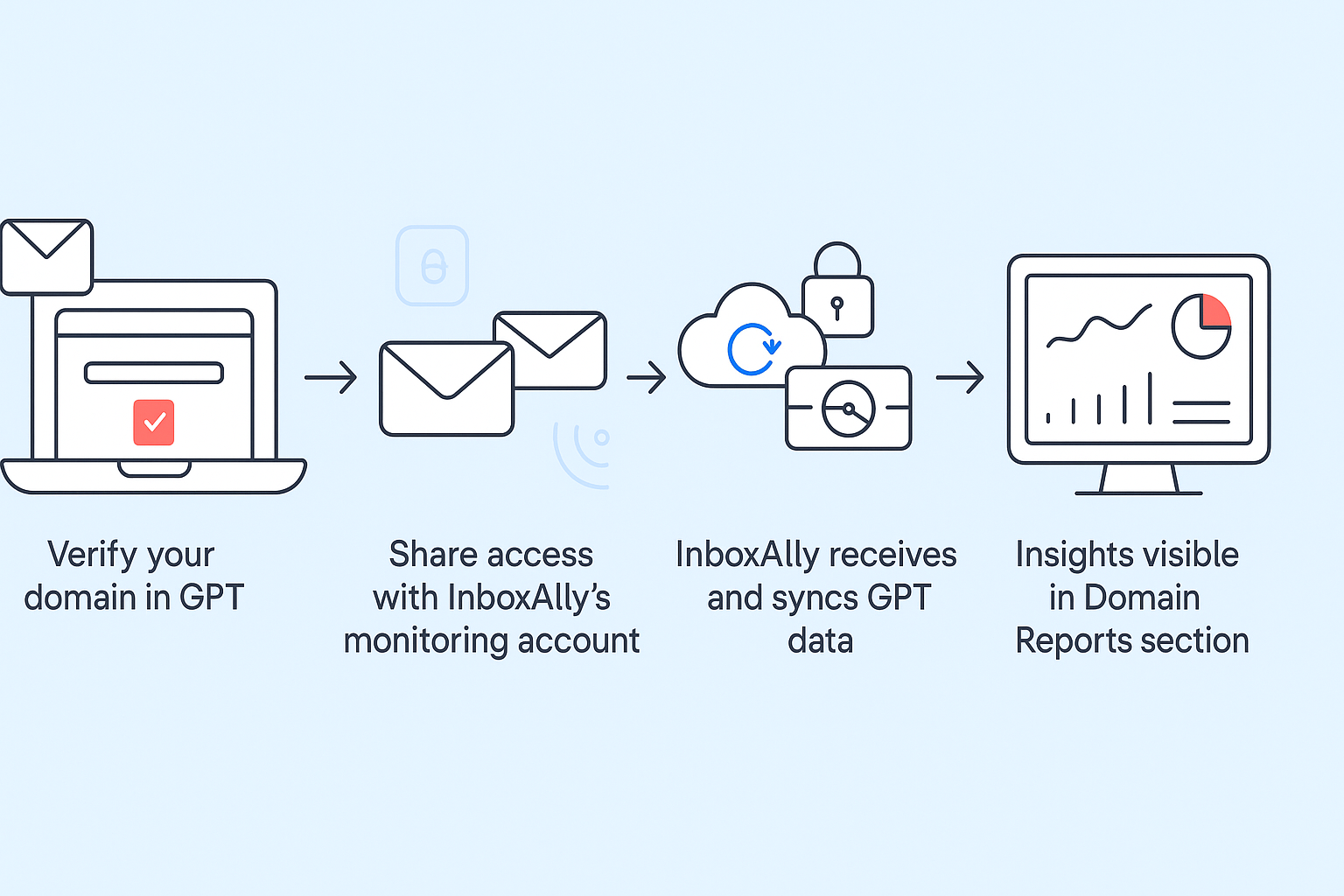
Configuring Google Postmaster Tools will provide visibility into your domain and IP reputation with Gmail. Here’s how to set it up:
- Follow Google’s Setup Guide
Visit the official Google support article and follow the instructions to verify your domain:
https://support.google.com/a/answer/9981691?hl=en - Verify Your Domain in Google Postmaster Tools
Use DNS verification to prove ownership of the domain(s) you want to monitor. - Share Access with InboxAlly’s Monitoring Account
Once GPT is configured, grant InboxAlly read access so it can pull your metrics:
- In InboxAlly, go to My Account. Your assigned GPT monitoring email address is displayed in the Google Postmaster Tools section.
- Copy that monitoring email address.
- In Google Postmaster Tools, open your verified domain, click the three-dot menu, and select Manage users.
- Add the InboxAlly monitoring email as a viewer.
- View Reports in InboxAlly
Within 24 hours of granting access, GPT data will appear in your Domain Reports section in InboxAlly.
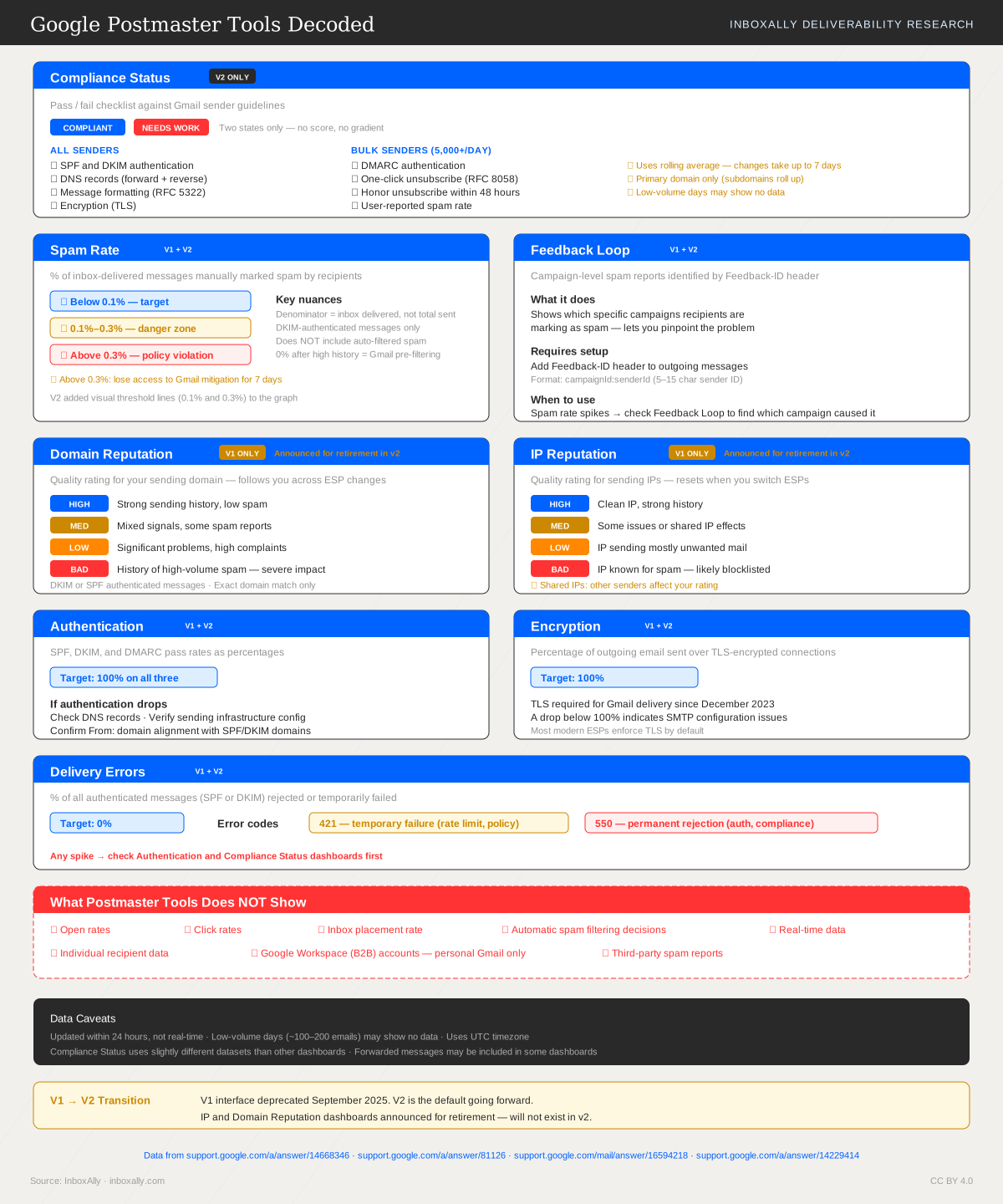
Google Postmaster Tools Decoded
Once connected, the GPT metrics that appear in your InboxAlly dashboard come from eight underlying dashboards — each showing a different dimension of how Gmail evaluates your email. This reference covers what each dashboard measures, which version it appears in, what healthy metrics look like, and what to do when something is off.
Frequently Asked Questions (FAQs)
Q: Do I need technical expertise to set this up?
A: Not necessarily. Google’s instructions are straightforward, and InboxAlly provides a guided process for sharing access. Our support team is also available to help.
Q: When will GPT data appear in InboxAlly?
A: You’ll typically start seeing data in the Domain Reports section within 24 hours of sharing access with the designated monitoring account.
Q: Can I connect multiple domains?
A: Yes. As long as each domain is verified in GPT and access is granted to InboxAlly, you can monitor multiple domains from your unified dashboard.